The admin portal

For department staff

The web portal where professional services staff run their department's Pigeonhole: publishing, moderation, the roster, events, questions, settings and analytics. The screenshots are of Priya Shah, Department Manager of Philosophy, Logic and Scientific Method, who holds the owner role.

Roles and signing in

Every member of a department has one role there:

RoleWhoIn the portal
OwnerThe department's lead administrator (Priya Shah)Everything, including the audit log and making other owners. In a safeguarding case an owner can also reveal who asked an anonymous question, through the API (there is no portal button for it yet); the reveal is audited
AdminProfessional services staff (Kemi Adebayo, Programme Officer)Every section except Audit
StaffAcademic staff (Dr Adaeze Okafor and colleagues)Dashboard, Publish, Publications, Events and My profile, for their own items
MemberStudentsNone: they use the app

Signing in works as in the app: the university email address, then the 6-digit code from the email. At LSE the email carries only the code, because Microsoft 365 held emails containing a link for a minute or two; a university whose mail is not delayed can also have a link in it that signs in on the computer where it is opened. The portal keeps the session in a secure cookie, so a reload does not sign you out. Staff who belong to more than one department switch between them from the top of the menu. The whole portal follows the computer's light or dark setting and scores 100 in Lighthouse's accessibility audit in both.

Portal sign-in card: 'Sign in to the department portal' with p.manager@lse.ac.uk typed in the University email field and a Send sign-in link button.
Sign in with the university address.
'Check your email' card: 'We sent a 6-digit code to p.manager@lse.ac.uk. Type it here.', with the code 123456 typed, a Sign in button, Use a different email and Send a new code.
The code from the email. The wording follows what the email contains: here, the code alone.

Dashboard

What needs attention today, each figure a link into its queue: open reports, drafts awaiting approval (including ones that arrived by email), publishing slots due this week with nothing scheduled, and questions waiting for an answer. Below: every publication of the last 30 days with the share of its audience that has opened it, the membership summary (active, pending approval, self-declared), and a live feed of new reports and publications.

Dashboard: 4 open reports, 2 drafts awaiting approval (1 in Publications, 1 from email-in), 0 empty slots due this week, 2 questions awaiting an answer; publications in the last 30 days with view bars, PLSM Newsletter Week 6 at 45% (27 of 60); membership 60 active, 1 pending approval; live activity.
Dashboard. PLSM Newsletter Week 6 has been opened by 27 of the 60 people it was sent to. One student, Noor Hassan, is waiting for approval.

Publish, in sixty seconds

Publishing is one page and one flow, designed to take a weekly newsletter from file to students in under a minute. Everything except the title is optional or filled in for you. The walkthrough below is Priya publishing the November careers bulletin, a two-page PDF.

  1. Drop the file

    Drag a PDF, Word, PowerPoint, Excel or image file (up to 50 MB) onto the page, or choose it. Several files make one publication with a primary file; no file at all makes a text-only notice. The phone preview on the right shows the library card as students will see it.
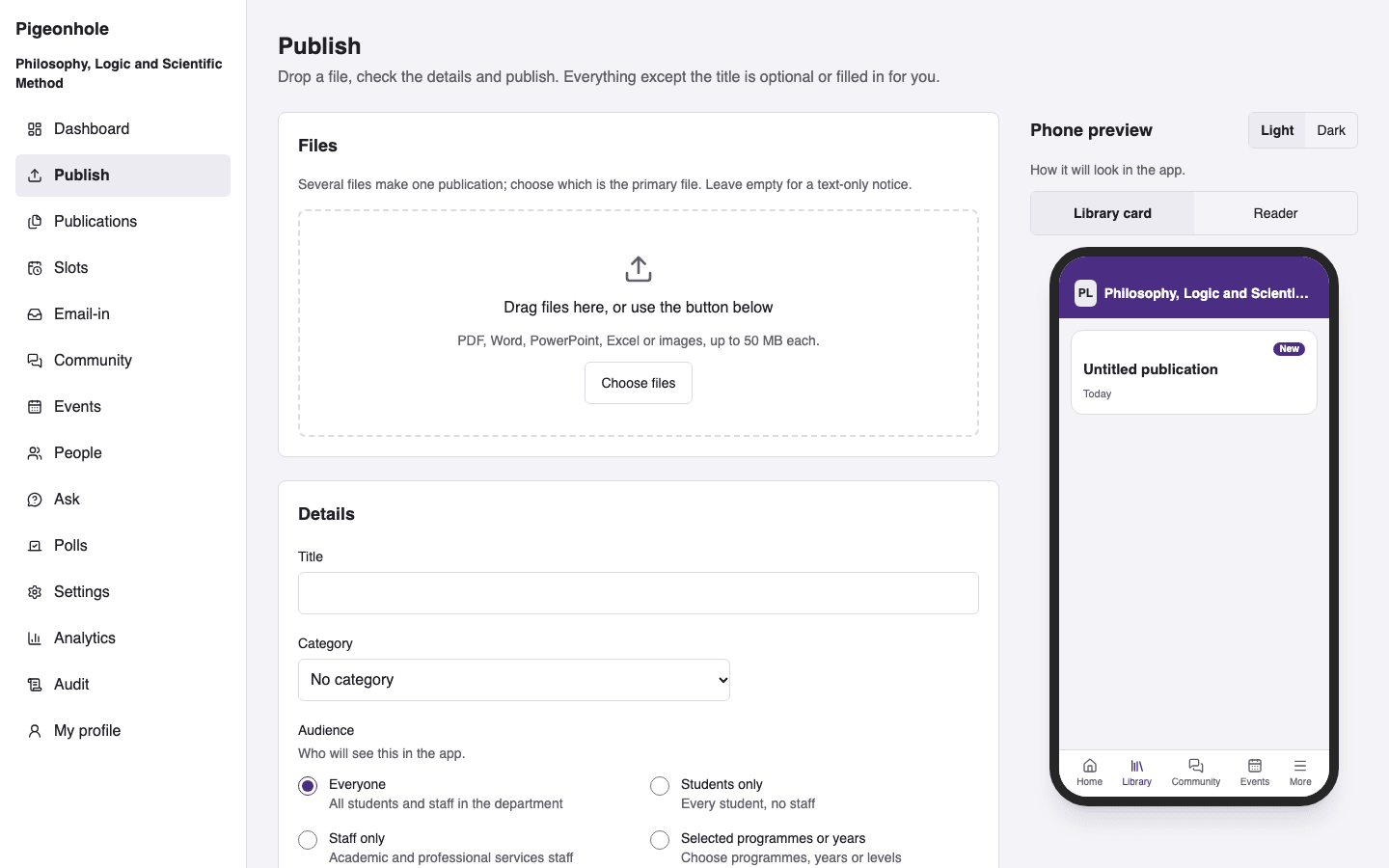
    Empty Publish page: a Files drop zone, Details with an empty title, No category and the audience set to Everyone, and a phone preview of an Untitled publication card.
  2. Check what was filled in

    The file uploads with a progress bar and is processed within seconds: text extracted for search, pages counted, a preview of the first page drawn. The title comes from the document's own title ("Filled in from the document's own title"), else from the file name. The category is guessed from the file name: here "Careers", from the word in Careers bulletin November.pdf. A file whose name matches a publishing slot, such as a newsletter, takes that slot's category and is attached to its next due date. The audience starts at Everyone.
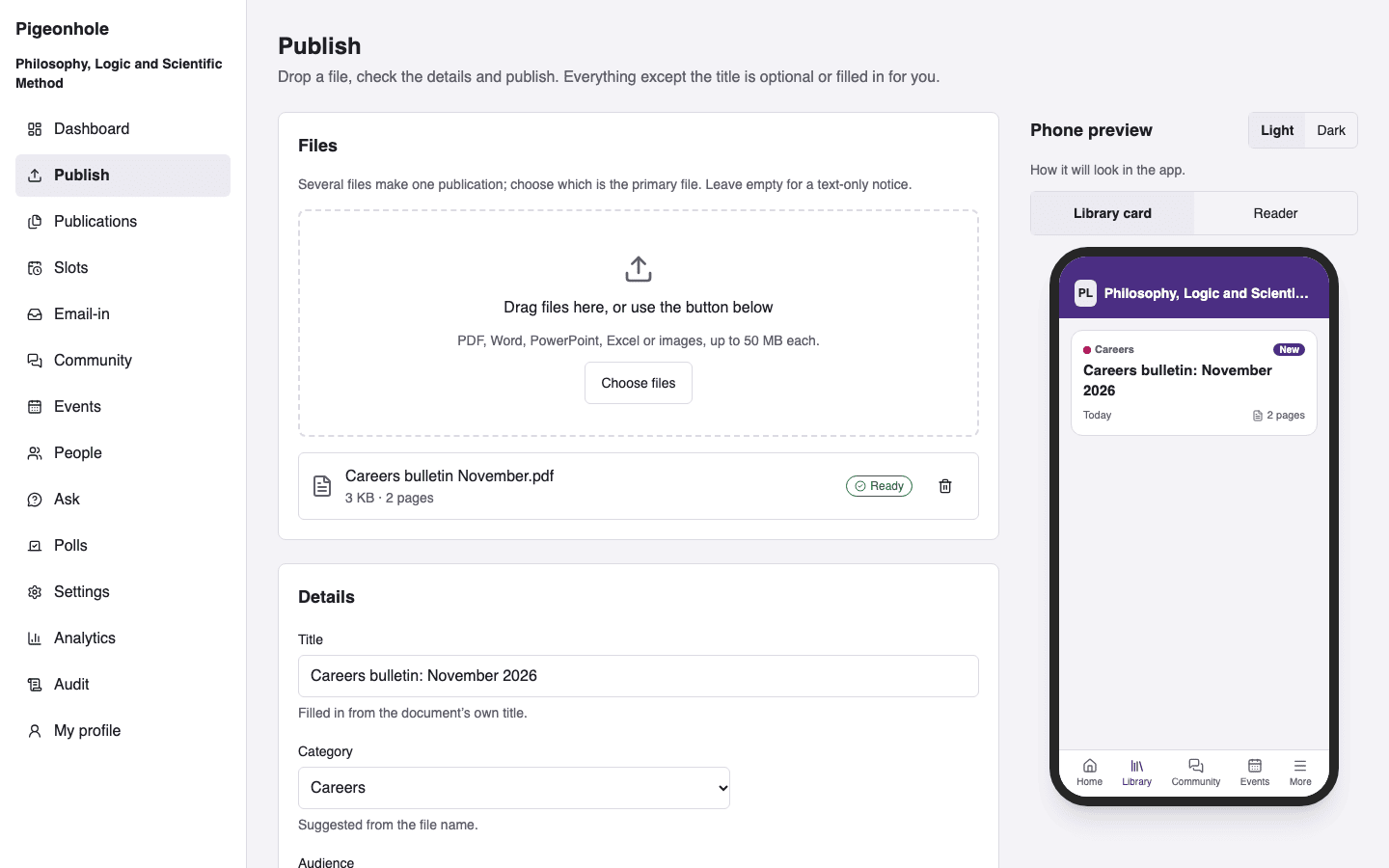
    Publish page after the drop: 'Careers bulletin November.pdf, 3 KB, 2 pages, Ready'; title 'Careers bulletin: November 2026' filled in from the document's own title; category Careers, suggested from the file name; the phone preview shows the Careers card.
  3. Add a summary and choose the audience

    Use first paragraph copies the document's opening paragraph into the summary shown on the card. The audience can be everyone, students only, staff only, chosen programmes, years or levels, or one community group; the line under it says whom it reaches. An optional Markdown body becomes a covering note, or the whole notice when there is no file.
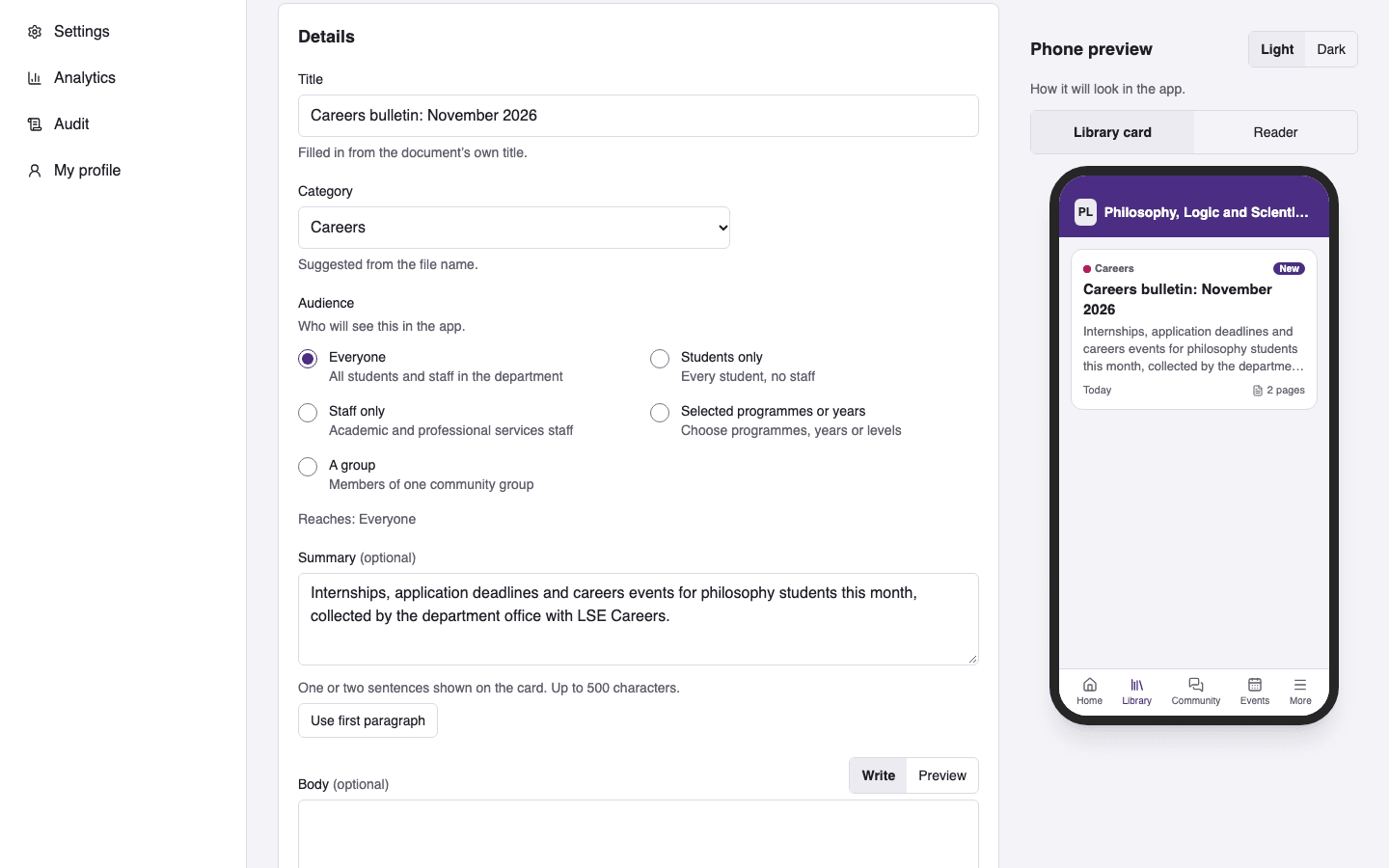
    Details section: audience options Everyone (selected), Students only, Staff only, Selected programmes or years, A group, 'Reaches: Everyone'; the summary filled with the bulletin's first paragraph; an empty Body with Write and Preview.
  4. Set the options

    Publish now, schedule for a date and time (in the department's time zone), or save as a draft. Notify: push, email, both or nothing; each category has a default (Careers defaults to the weekly digest, so Priya chose a push this time). Students in quiet hours get the push at 08:00. Optionally pin it to the top of Home and the Library until a date, give it an expiry date after which it moves to the archive, and attach it to a recurring slot.
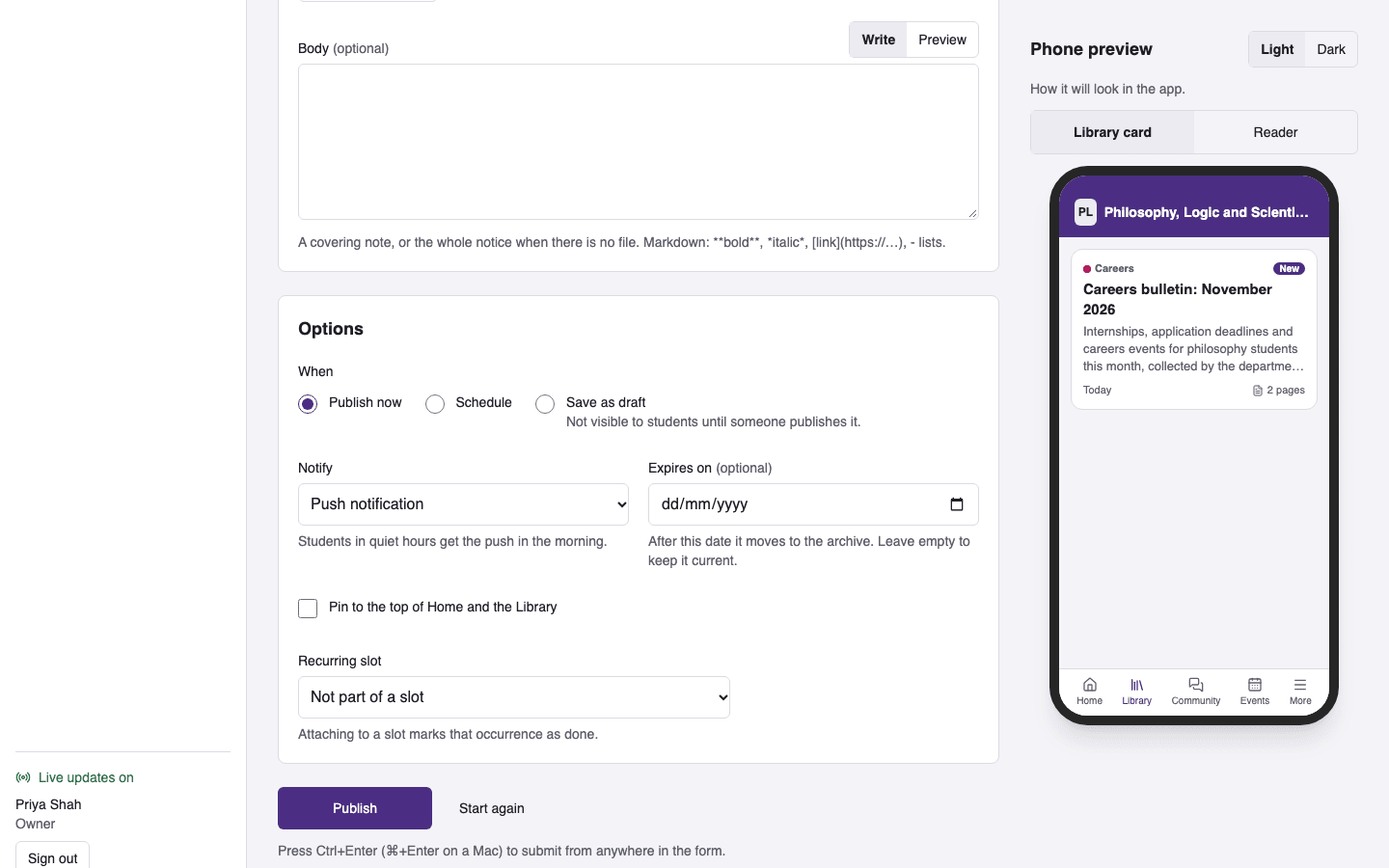
    Options: When (Publish now selected, Schedule, Save as draft), Notify set to Push notification, Expires on, Pin to the top of Home and the Library, Recurring slot 'Not part of a slot'; Publish and Start again buttons; phone preview of the finished card.
  5. Publish

    One click (or Ctrl+Enter). A confirmation links to the item in Publications, where its view count starts to climb. The bulletin appears at once in the library of every phone with the app open, and the 60 members of the department had a notification in their inbox within a second. It is the "Careers bulletin" that appears in the student screenshots.
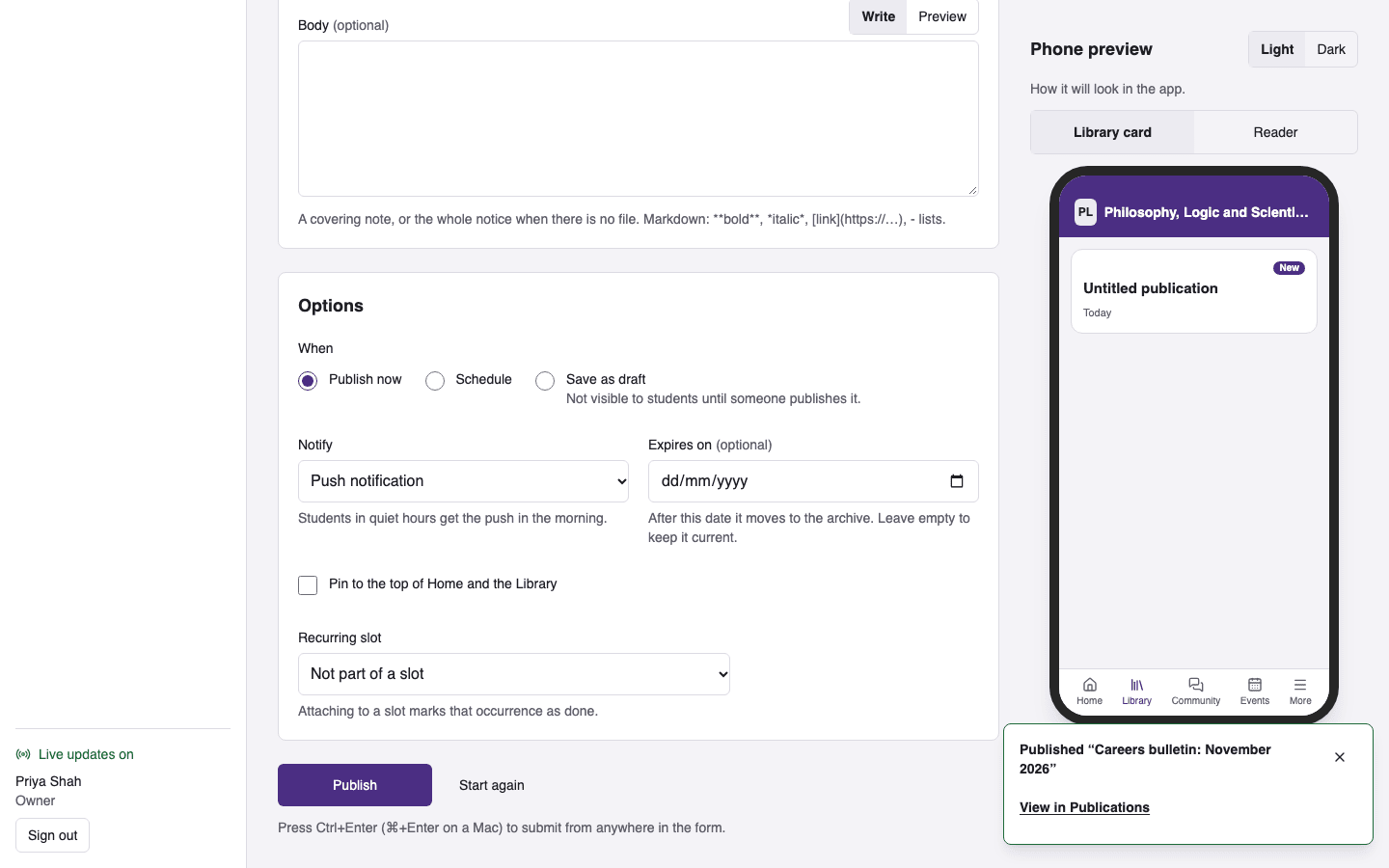
    Publish page reset after publishing, with a confirmation 'Published “Careers bulletin: November 2026”' and a View in Publications link.

Publications

Every publication with its status (draft, scheduled, published, expired, archived), category, audience, the share of the audience that has opened it, and whether it is pinned. Filter by status and category, search titles, and act on several at once (publish, unpublish, archive). Clicking an item opens a drawer with four tabs. Staff see their own items; admins see everything.

Publications table: PLSM Newsletter Week 7 scheduled for 9 Nov 2026 09:00; Freshers' week guide expired; MSc Philosophy of Science handbook 50% (3 of 6); Wellbeing support this term 44.3% (27 of 61); and others with status, category, audience, viewed and pinned columns.
Publications. Next Monday's newsletter is already scheduled; the Freshers' week guide has expired and moved to the archive.
Drawer for the Undergraduate Handbook 2026/27, Version 2, Published, Handbook: Unpublish, Archive, Duplicate; Details tab with title, summary, covering note, category and audience.
Details. Edit anything; unpublish, archive or duplicate.
Files tab: current file 'PLSM Undergraduate Handbook 2026-27.pdf, 6 KB, 4 pages, Primary'; Replace or add files drop zone; a 'Notify again' checkbox; 'What changed' field; Replace files and Add to publication buttons.
Files. Replacing a file makes a new version; tick "Notify again" if it matters, and say what changed.
History tab: Version 2 (current); Version 1, replaced by Priya Shah on 23 Oct 2026: 'Corrected the dissertation deadline and added the extensions section', file PLSM Undergraduate Handbook 2026-27 (draft).pdf; created by Priya Shah on 22 Sept 2026.
History. Every version, who replaced it and why; students can still open old versions.
Views tab: viewed by 19, audience 43, 44.2% of the audience, median time to first view 40 h; first views by day after publishing; 'Counts only: Pigeonhole never shows which students read what.'
Views. Counts only. Nobody can see which students have read what.

Slots

A slot is a recurring publishing obligation, such as "Weekly newsletter, every Monday, category Newsletter, audience Everyone, notify by push". Two days before an occurrence is due with nothing scheduled, the slot's owner gets an email and the dashboard shows it, with a link that opens Publish already filled in. Publishing into a slot marks that occurrence done. Repeats can be weekly on chosen days, monthly on a date, or a list of term dates.

Slots list: SSLC minutes, monthly on day 20, Minutes, owner Kemi Adebayo, next due Fri 20 Nov 2026; Weekly newsletter, every Monday, Newsletter, owner Priya Shah, next due Mon 9 Nov 2026.
Slots. The weekly newsletter and the monthly Staff-Student Liaison Committee minutes.
Edit slot dialog for Weekly newsletter: category Newsletter; repeats weekly on chosen days (Monday ticked), every 1 week starting 28/09/2026, 'Every Monday. Next: Mon 9 Nov, Mon 16 Nov, Mon 23 Nov, Mon 30 Nov'; audience Everyone.
The slot editor previews the next dates.
Due soon tab: Mon 9 Nov 2026 Weekly newsletter, Scheduled, View publication; Mon 16 Nov 2026 Weekly newsletter, Nothing scheduled, Publish now.
Due soon. The next two weeks: Week 7 is scheduled, Week 8 is not yet.

Email-in

Staff can publish without opening the portal: add the department's inbound address to CC (or To) on the email they already send to students. The email's text becomes the covering note and its attachments the files. Only admins and staff of the department, and addresses on the allow-list, can publish this way, and the message must pass the sender checks (SPF or DKIM); anything else is rejected silently and listed for inspection. Rules, checked in order, decide category and audience and whether to publish straight away; an email that matches no auto-publish rule becomes a draft, and admins get an email with a one-click Publish link. The address contains a random part so it cannot be guessed; if it leaks, make a new one.

Email-in, Address and rules: the department's address philosophy-7k2q4x@in.localhost with Copy address, an explanation of how it works, Make a new address; Allowed senders listing philosophy.newsletter@lse.ac.uk; the start of the Rules.
The address and allowed senders. (The demonstration server uses a local domain.)
Rules: Rule 1, subject contains Newsletter, category Newsletter, notify Push notification, audience Everyone, Publish automatically ticked.
Rules. "Subject contains Newsletter" publishes straight to everyone with a push.
Received emails: 1 Nov from k.officer@lse.ac.uk 'Lent Term option choices', SPF and DKIM pass, Draft, with Publish and Review draft; 29 Oct from promo@example.com 'Win a free laptop', SPF and DKIM fail, Rejected: sender is not on the allow-list; 26 Oct from p.manager@lse.ac.uk 'PLSM Newsletter Week 5', Published.
Received emails. A draft waiting for one click, a rejected spam message, and Week 5's newsletter, which published itself.

Community and moderation

The Community section has four tabs: the moderation queue, groups, channels and settings, and the community guidelines. Reports go to every admin at once, by email and in the portal, and the department should act within 24 hours (the App Store expects it). A post reported by three different people is hidden automatically until someone looks.

A worked example

On 1 November Sam Student reported a reply as harassment, noting "This was aimed at another student and is unkind." The reply, from Rebeca Kertzmann, answers Bell Lockman's post to BSc PLSM asking who would like a weekly Logic problem-sheet session: "Honestly, nobody wants you in this group. Stop posting." The queue shows it in context: the report and the reporter's note, the post it replied to, and the reported post itself. Below it, three students have reported a "barely used copy of Varian" advert as spam; three reports hid it automatically ("Hidden automatically after 3 reports, pending review").

Priya chooses Remove, writes a note for the moderation log, ticks Also warn the author and picks the Harassment template, which fills in the warning Rebeca will receive. Removing the post closes the report; Sam is told that action was taken, without the details; Rebeca gets the warning; and both actions appear in the moderation history. The other actions are Dismiss (which also restores a post hidden automatically), Hide, Warn, Suspend for 1, 7 or 30 days, and, for group posts, ban from the group.

Moderation queue: Harassment report on a post, reported by Sam Student on 1 Nov 2026, note 'This was aimed at another student and is unkind'; in reply to Bell Lockman's post about a weekly Logic problem-sheet session; reported post from Rebeca Kertzmann: 'Honestly, nobody wants you in this group. Stop posting.'; buttons Dismiss, Hide, Remove, Warn, Suspend. Below, a spam report.
The queue. Each report with the item in its thread.
Remove this post dialog: note for the moderation log 'Personal remarks about another student after the PH101 seminar; removed under guideline 2.'; Also warn the author ticked; warning template Harassment; warning text 'Your post was removed because it targeted another member. Please keep discussion respectful; further breaches may lead to a suspension.'; Cancel and Remove post.
Remove, with a warning. The note stays in the log; the reporter is told the outcome in general terms.
Two spam reports on Shanny Wehner's post selling a copy of Varian, each marked Hidden and '3 open reports on this item', with action buttons; below, the moderation history: Priya Shah suspended a member until 7 Nov 2026; Kemi Adebayo dismissed a report and warned a member.
Spam hidden automatically, and the history of every action, with who and when.
Groups tab: Kant's third Critique reading group (Reading group, Open, 11 members, created by Sam Student, Active, Featured) with Members, Unfeature and Archive; Logic study group (by request, 7 members); MSc dissertation support (Hidden, 4); Philosophy Society socials (Social, Open, 8).
Groups. Every group, hidden ones included; feature a group to put it first in Discover, or archive it.
Channels and settings tab: automatic channels with member counts (department board 61, each programme, Year 1 to Year 4); Community settings: community board and channels, student groups on.
Channels and settings. The automatic channels follow the roster. Switches decide whether students may post to the whole department board.
Guidelines editor in Markdown: 1. Use your real name and be kind. 2. Post to the right audience. 3. No harassment, spam or impersonation. 4. Keep it legal and private. 5. Staff can see everything students can; there are no private messages here.
Guidelines. Shown before a student's first post and linked from every report.

Events

Department events and key dates, as a list or a month calendar, with RSVP counts. The editor covers the kind of event (event, deadline, meeting), a Markdown description, place (a room code such as LAK 2.06, an address, or an online link), all-day or timed, repetition (weekly or monthly, with an end), the audience, whether RSVPs are taken and a capacity, and the reminders offered. Events can be cancelled (everyone who replied is told) and exported as .ics; an existing calendar can be imported from an .ics file; attendee lists download as CSV.

Events list: Department research seminar 4 Nov 17:00 (Repeats), Reading group sections 1-22 (Meeting, group Kant's third Critique reading group), MSc dissertation proposal workshop, Careers evening 10 Nov 18:00 MAR.1.09, PH201 formative essay deadline (Key date, RSVP off), with location and RSVP counts.
Events. Group meetings are listed too, so staff see what is happening.
November 2026 month calendar with today, 4 November, highlighted; the weekly Department research seminar every Wednesday, reading group meetings on Thursdays, the careers evening on 10 November and the PH201 deadline on 13 November.
Calendar. The weekly research seminar repeats every Wednesday.
Edit event drawer for the Department research seminar, times in Europe/London: title, kind Event, description 'Weekly research seminar with invited speakers. All welcome; refreshments afterwards.', location LAK 2.06, starts 21/10/2026 17:00, ends 18:30, repeats weekly on chosen days.
The editor. Times are always the department's, so a 17:00 seminar stays at 17:00 after the clocks change.

Maths, video and audio

An event's title can contain TeX maths between dollar signs ($…$, or \(…\)); the editor shows under the title how it will look ("Shown as"), and the events list and the app draw it the same way. The description, like every Markdown text in Pigeonhole (a publication's note, posts, answers, FAQs, the guidelines), can also hold displayed formulas ($$…$$ or \[…\] on a line of their own). Formulas are drawn as MathJax SVG with the same rules in the portal and the app; "$5 and $10" stays text. Press Preview to check them before saving.

A line that holds only a YouTube or Vimeo link, or a link to an audio or video file, becomes a player with the link underneath it, in the portal and in the app. YouTube is embedded from youtube-nocookie.com, and only YouTube and Vimeo may be embedded; emails and push notifications show the link. Both examples below were made for these screenshots.

Edit event drawer for 'Bayes for philosophers: when is P(H | E) > P(H)?', the title drawn with maths in the drawer's heading and in the events list behind it; the Title field holds the TeX source with 'Shown as' underneath; the description in Preview shows Bayes' theorem as a displayed formula and inline formulas; location LAK 2.06, 12/11/2026 13:00 to 14:00.
Maths in a title and a description, in Preview.
Edit event drawer for 'Sigma Club recordings: watch and discuss', description in Preview: a paragraph, a YouTube player for 'Sigma Club Seminar by Ellis Scharfenaker: Bayes' Theorem and the Principle of Maximum Entropy' from LSE Philosophy with the link 'YouTube video: https://www.youtube.com/watch?v=m7PW3myb3pA' under it, then an audio player for the department's 2020 lecture with its link.
Players for a YouTube link and an MP3 link, each on a line of its own.

People and the roster

Four tabs. Members: search and filter everyone; approve pending members, change roles, suspend or reinstate, remove, sign someone out of every device, and see their audit trail. Roster: the termly student list. Staff directory: what the app's People screen shows for each member of staff (staff can edit their own under My profile). Invitations: for staff who are not on a roster.

Importing the roster

Each term the department uploads the student list as a CSV file with the columns email, name, programme code and year (common variants of those headings, Excel's CSV and semicolon-separated files are understood). Nothing changes until someone has looked at the difference and pressed Apply import:

  • Added: people who will become active, verified members (including pending students the roster now lists);
  • Changed: a different programme or year;
  • No longer on the roster: students who will lapse after the grace period (14 days here), unless they reappear; a lapsed student can no longer open the department;
  • Errors: lines that are skipped, with the reason.

In the example, the Michaelmas week 5 roster adds Noor Hassan (who had asked to join and was waiting for approval), moves Jamey Toy from BSc PLSM to BSc PPE, would lapse Rowan Pollich and Tessie Conn, and skips one line because Golda Hintz appears twice.

Changes in 'PLSM roster, Michaelmas week 5.csv', Not applied: Added 1, Changed 1, Unchanged 49, No longer on the roster 2, Errors 1. Added: line 52, new.student@lse.ac.uk, Noor Hassan, BSC-PLSM, year 1. Changed: line 18, j.toy@lse.ac.uk, Jamey Toy, BSC-PLSM year 1 to BSC-PPE year 1. No longer on the roster: Rowan Pollich, Tessie Conn, marked lapsed 14 days after applying. Errors: line 53, duplicate email address (also on line 15). Apply import.
The difference before applying. Every term's import is kept in the history.
Roster tab: Roster import panel with a Roster CSV file chooser and Preview changes; previous imports with uploaded date, rows, added/changed/lapsed/errors and status: plsm-roster-2027-01.csv uploaded on 1 Nov 2026 by Kemi Adebayo, not applied; plsm-roster-2026-09.csv applied on 2 Sept 2026 by Priya Shah.
Roster. Upload, and the history of imports.
Members tab: search and filters for status, role, programme and year; a table of members with programme, year, role, status, verified by (Roster or Admin), last active, and a Manage button.
Members. How each person was verified, and when they were last active.
Staff directory: Dr Adaeze Okafor, Associate Professor, ask me about dissertations and year abroad, Thursdays 13:00–15:00, LAK 3.02; Dr Daniel Harris; Dr Lucie Moreau; Dr Ravi Patel; Dr Tom Walsh; Kemi Adebayo, Programme Officer; Priya Shah, Department Manager; Professor Mei Chen.
Staff directory. Titles, "ask me about" topics, office hours and rooms.
Invitations tab: 'Invite someone' with email address and role (Staff) and Send invitation; a pending invitation to v.lecturer@lse.ac.uk as Staff, invited by Priya Shah on 1 Nov 2026, with Resend and Revoke.
Invitations. Valid for seven days, for the address they were sent to only.

Ask

Questions and suggestions from students, with anonymous ones marked: for those the portal shows only "Anonymous student", and nothing in the portal reveals more (only an owner's audited API call, for a safeguarding case, does). Open one to reply privately, assign it to a colleague, write an answer, close it, or publish it as an FAQ with edited wording. The FAQs tab sets the order students see them in.

Ask inbox: an anonymous suggestion about an essay-writing workshop (New, unassigned); Sydney Schinner's question about applying for the year abroad (Assigned to Dr Adaeze Okafor); Sam Student's question about PH201 feedback (Answered); Amani Jerde's question (Closed); an anonymous question about a quiet room (Published as FAQ).
The inbox, filtered by status and type.
Question drawer: Suggestion, Anonymous, New; 'Anonymous student, received 31 Oct 2026'; 'Could the department run an essay-writing workshop before the formative deadline?'; conversation; Reply privately; Assign to; Answer.
An anonymous suggestion. Reply, assign or answer; only an owner can reveal the author (through the API), and that is audited.
FAQs tab: 'Students see published FAQs in this order', with New FAQ; How do I request an extension?; Where is the department office?; Who is my academic mentor?; Is there a quiet room near the department? (from a student question); How do exam adjustments work?; each with move, edit and delete.
FAQs. One came from an anonymous student's question.

Polls

A poll from the department is a post in the community feed: two to ten options, single or multiple choice, anonymous or named, a closing time and an audience. Results are live; for named polls the results show who chose what, and they export as CSV.

Polls page: 'Which evening suits the end-of-term party?', open, posted 27 Oct 2026 by Kemi Adebayo, closes 14 Nov 2026 17:00, one answer, named, audience Everyone; Tuesday 8 December 8 votes (35%), Wednesday 9 December 9 votes (39%), Thursday 10 December 6 votes (26%); 23 voters; Results; Export CSV.
Polls. Wednesday 9 December is ahead.
Results drawer for the end-of-term party poll: 23 voters, each option with its votes and the names of those who chose it.
Results of a named poll, with names.

Settings

Eight tabs, and a button to run the setup wizard again.

TabWhat it sets
BrandingName, short name (used in the switcher and notifications), time zone, accent colours for light and dark themes with a contrast check, header style, logo and app icon, with a live phone preview
Programmes and yearsEach programme's code (as in the roster), name, level and length
CategoriesColour, icon, order and default notification (push, digest only or none) for each library category; archive ones no longer used
Members and accessWhether people not on a roster are approved by an admin, let straight in, or refused until a roster includes them; the roster grace period; the list of admins and owners
FeaturesSwitch the community board, student groups, polls, the student directory, anonymous questions and publishing by email on or off
NotificationsThe defaults for members who have not changed their own: push, email and digest per category, and quiet hours
CommunityWho students may address, the automatic-hiding threshold (3 reports) and the guidelines
Privacy noticeThe department's privacy notice, shown in the app under About and privacy
Settings, Branding: department name Philosophy, Logic and Scientific Method, short name Philosophy, time zone Europe/London, accent colours #4B2E83 (10.4:1, meets WCAG AA) and #B9A4E3 for dark (7.5:1), header style Accent colour, logo and app icon uploads, and a phone preview of Home.
Branding. The contrast of each accent colour is checked as you type; the phone preview switches between light and dark.
The branding phone preview in close-up: the department header in the accent colour, a pinned notice card 'Welcome to the new term', a coming-up event and an Open PDF button.
The live preview, built from the same design tokens as the app.
Categories tab: Newsletter, Handbook, Timetable, Notice, Form, Minutes, Careers, Wellbeing, each with colour, icon and default notification (Push, None or Weekly digest only), and controls to reorder, edit or archive.
Categories. Minutes and Careers go to the weekly digest unless a publication says otherwise.
Members and access: people who join without being on a roster: an admin approves each one (recommended), let them in straight away, or only people on a roster; grace period 14 days; email domains note; admins and owners.
Members and access.
Features tab with checkboxes: community board and channels, student groups, polls, student directory, anonymous questions, publish by email; Save changes.
Features.
Notification defaults table with push, email and weekly digest columns for new publication, pinned notice, reply, mention, new post in a group, new post to their programme or year (digest only), event reminder, new event in their audience (digest), answer to their question, and admins' new report (push and email).
Notification defaults. Few by default, precise when they happen.
Community settings tab: board and channels, student groups and polls switched on; students may post to the whole department board; students may not address staff only; hide a post automatically after 3 reports; the community guidelines editor.
Community. The automatic-hiding threshold and whom students may address.
Programmes and years: MPHIL-PHD MPhil/PhD Philosophy (research postgraduate, 4 years), MSC-PHILSCI MSc Philosophy of Science (taught postgraduate, 1), BSC-PE, BSC-PLSM, BSC-PPE, BSC-PP (undergraduate, 3), all active.
Programmes. Codes match the roster.
Privacy notice editor with the department's notice: the department uses Pigeonhole to publish information to students and let students find each other; it processes name, university email, programme and year from the roster; data can be exported or deleted from Settings.
Privacy notice. The department is the data controller and writes its own.

Analytics

Aggregates only, for the last 7, 30 or 90 days, the term or the academic year: active members, publications, posts and groups created, questions answered within 48 hours; each publication's views as a share of its audience and the median time to first view (withheld when fewer than three people have viewed, so it never describes one reader); active members per week; and the searches that found nothing, which are the clearest signal of what students look for and cannot find (here: "dissertation template", "printer" and "exam timetable").

Analytics for the last 30 days (6 Oct to 4 Nov 2026): 60 active members, 9 publications published, 102 posts created, 4 groups created, 2 of 4 questions answered within 48 hours; a table of publication views as a share of their audience with median time to first view, and Export publications CSV.
Analytics. "Aggregate figures only. Nobody's individual reading history is shown to staff."

Audit log and My profile

Owners see the audit log: every administrative, moderation and sensitive sign-in action with who, when and what, filterable by action and target. It is kept for 24 months. My profile is each member of staff's own entry in the app's People directory.

Audit log: 4 Nov 2026 Priya Shah roster.upload (added 1, errors 1, lapsed 2, changed 1); publication.publish and publication.create for the careers bulletin; 31 Oct member.suspend until 7 Nov; moderation.warn and moderation.remove by Kemi Adebayo; member.approve; tenant.update.
Audit log. The careers bulletin and the roster preview from this page are at the top.
My profile: title Department Manager, about you, ask me about extensions and timetabling, interests, office hours Weekdays 10:00–16:00 (department office), room LAK 2.01, show me in the People directory.
My profile. What students see about you in People.

Setting up a new department

When the platform owner adds a department (from the portal's Platform page, or from the command line), its owner receives an invitation. On first sign-in the dashboard offers the setup wizard: six short steps, each saved as you go, any of which can be skipped and revisited later from Settings. The example creates the Department of Economic History, whose owner is eh.manager@lse.ac.uk.

  1. Add the department

    The platform administrator enters the name, short name, the slug used in links, and the owner's email address. The owner is invited by email.
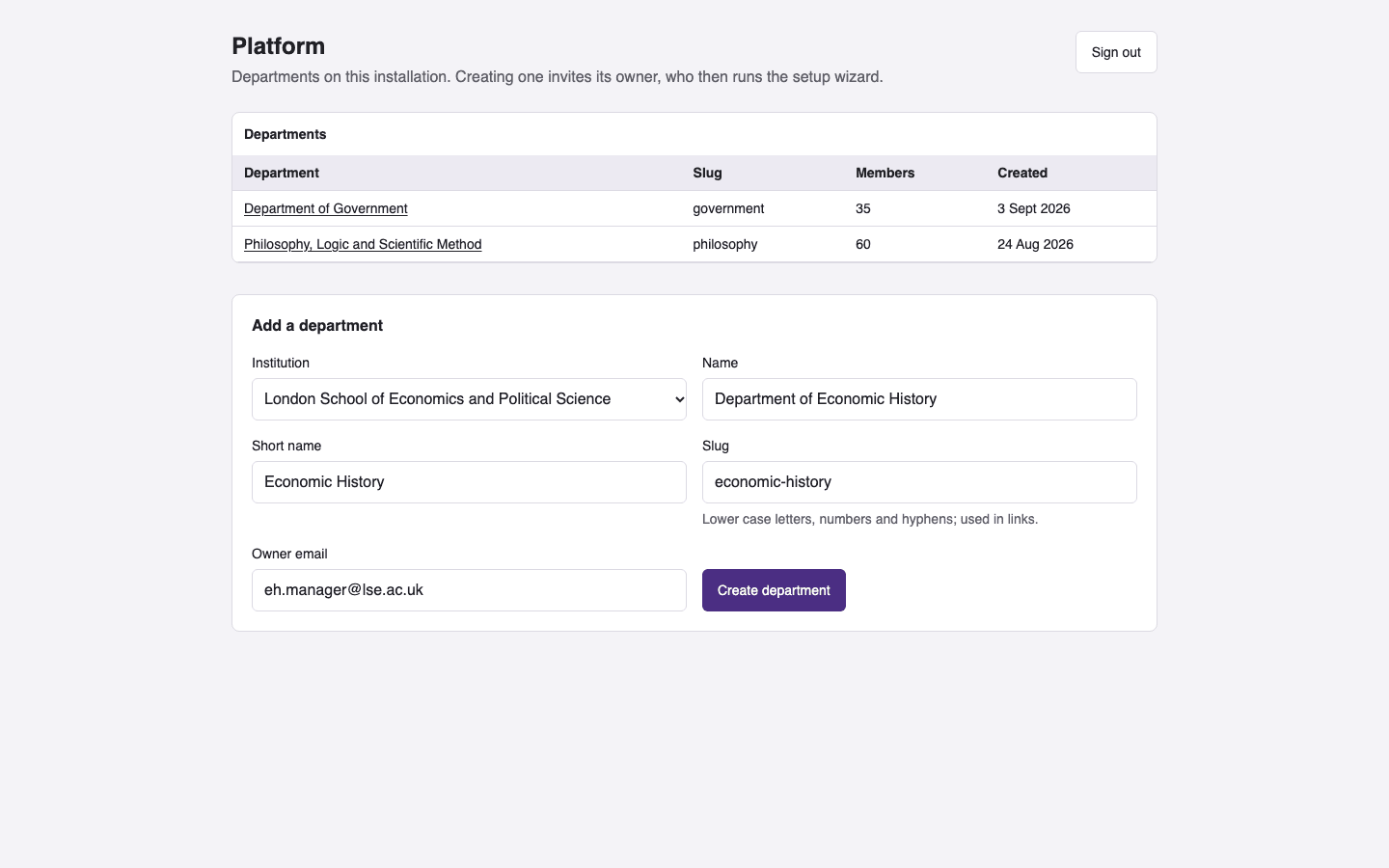
    Platform page: list of departments (Department of Government, Philosophy, Logic and Scientific Method) and 'Add a department' with institution London School of Economics and Political Science, name Department of Economic History, short name Economic History, slug economic-history, owner email eh.manager@lse.ac.uk, Create department.
  2. The owner signs in

    The invitation is accepted at sign-in, and the dashboard's first card says what is left: "Add programmes, categories, community settings, the first roster and the email-in address. It takes about ten minutes."
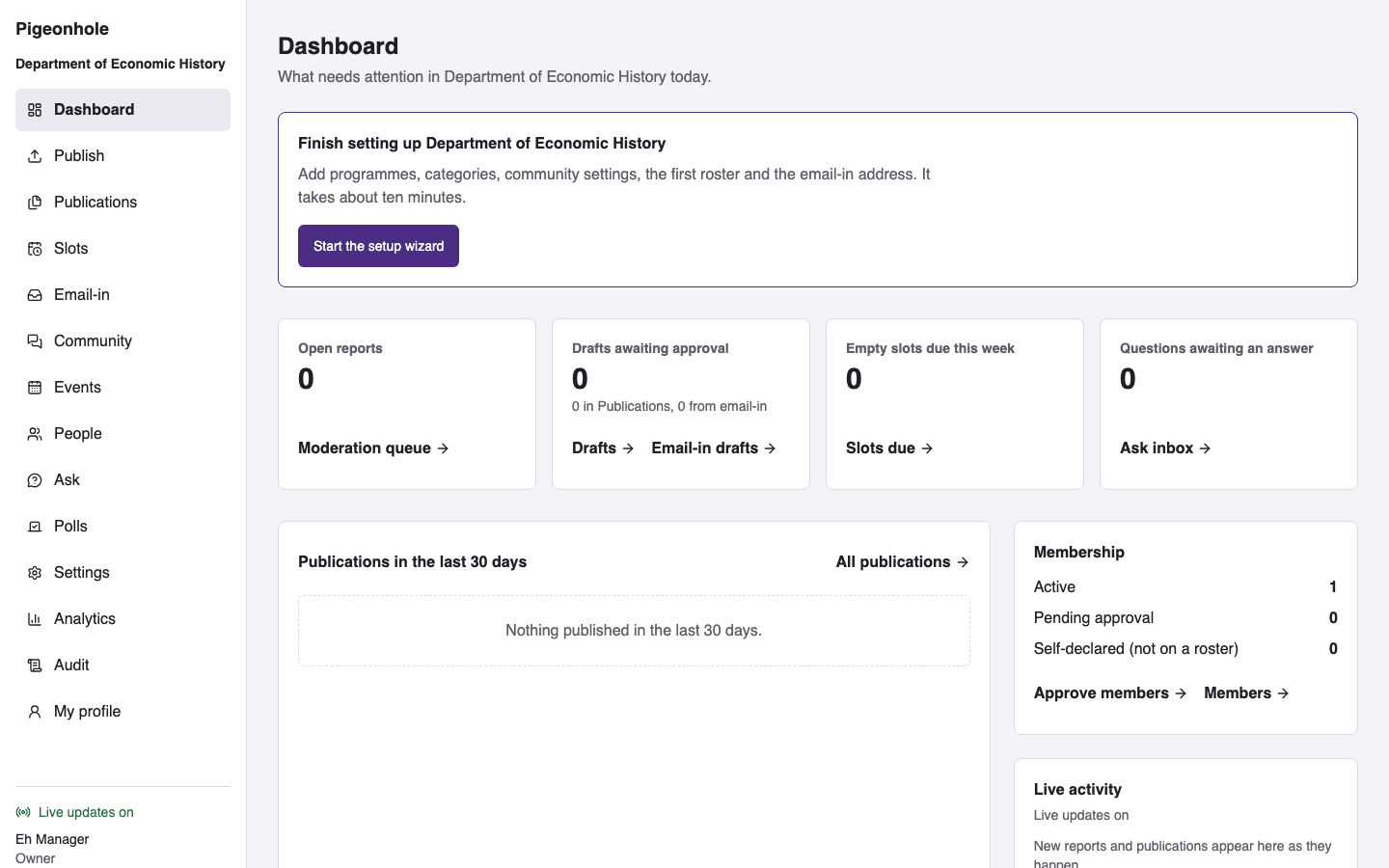
    Dashboard of the new Department of Economic History with a 'Finish setting up Department of Economic History' card and a Start the setup wizard button, and empty figures.
  3. Department

    Name, short name, time zone, accent colours with the contrast check, logo and icon, with the phone preview.
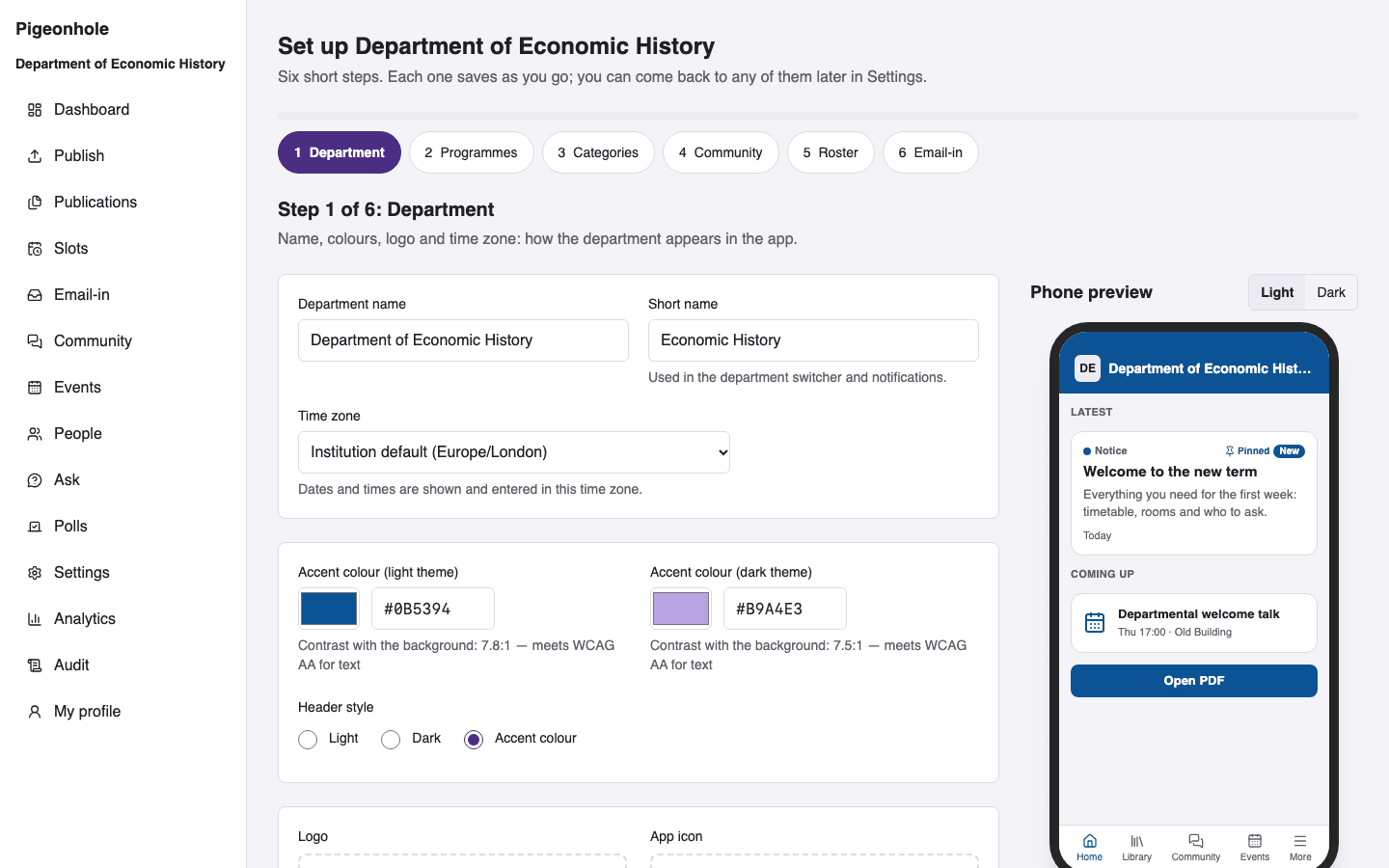
    Set up Department of Economic History, step 1 of 6: Department, with a progress bar and step list, name and short name, time zone, accent colour #0B5394 (7.8:1, meets WCAG AA), and a blue phone preview.
  4. Programmes

    The degrees, with codes as they appear in the roster.
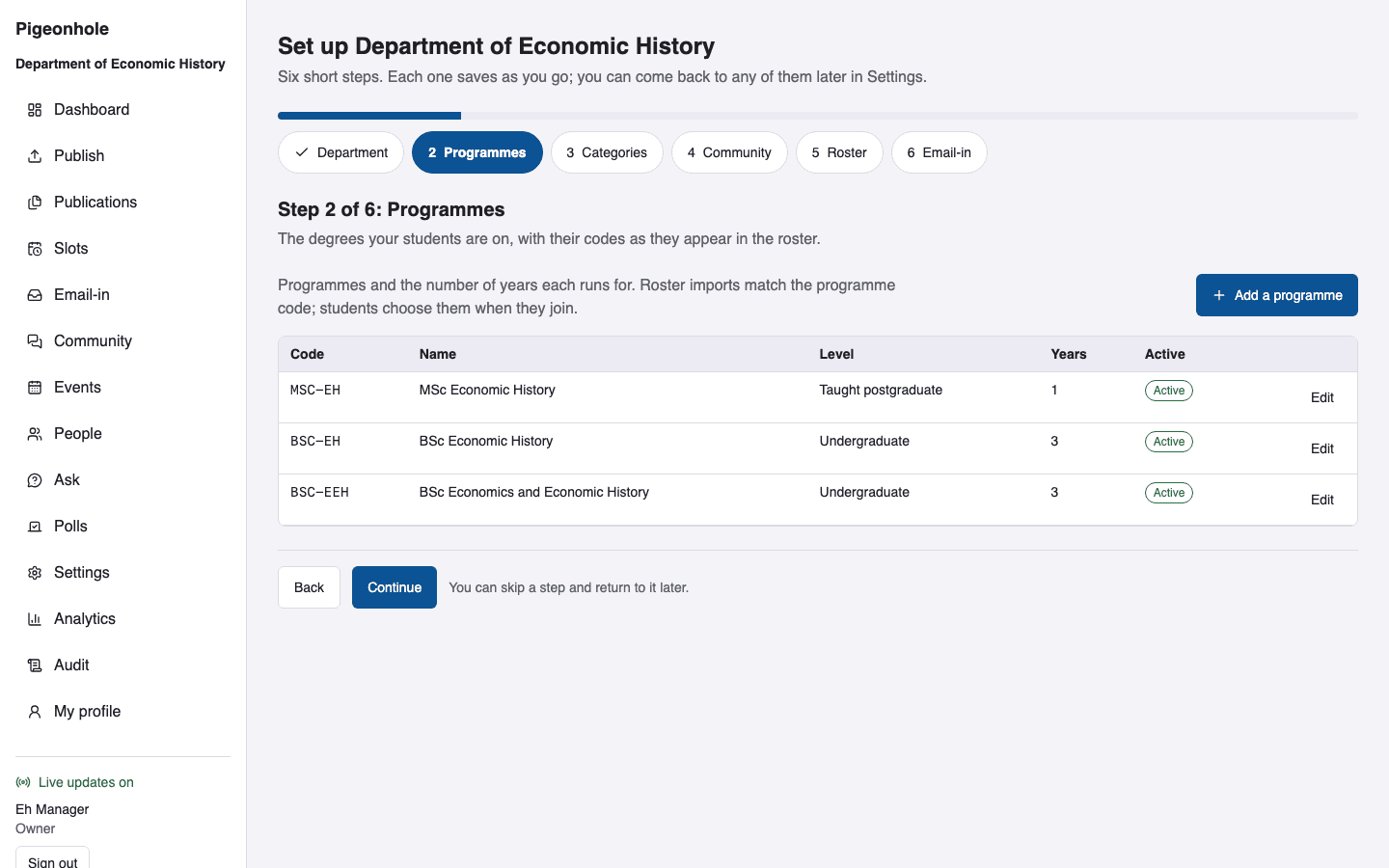
    Step 2 of 6: Programmes: MSC-EH MSc Economic History (taught postgraduate, 1 year), BSC-EH BSc Economic History and BSC-EEH BSc Economics and Economic History (undergraduate, 3 years); Add a programme; Back and Continue.
  5. Categories

    A recommended set is already there (Newsletter, Handbook, Timetable, Notice, Form, Minutes, Careers, Wellbeing); edit, reorder or archive.
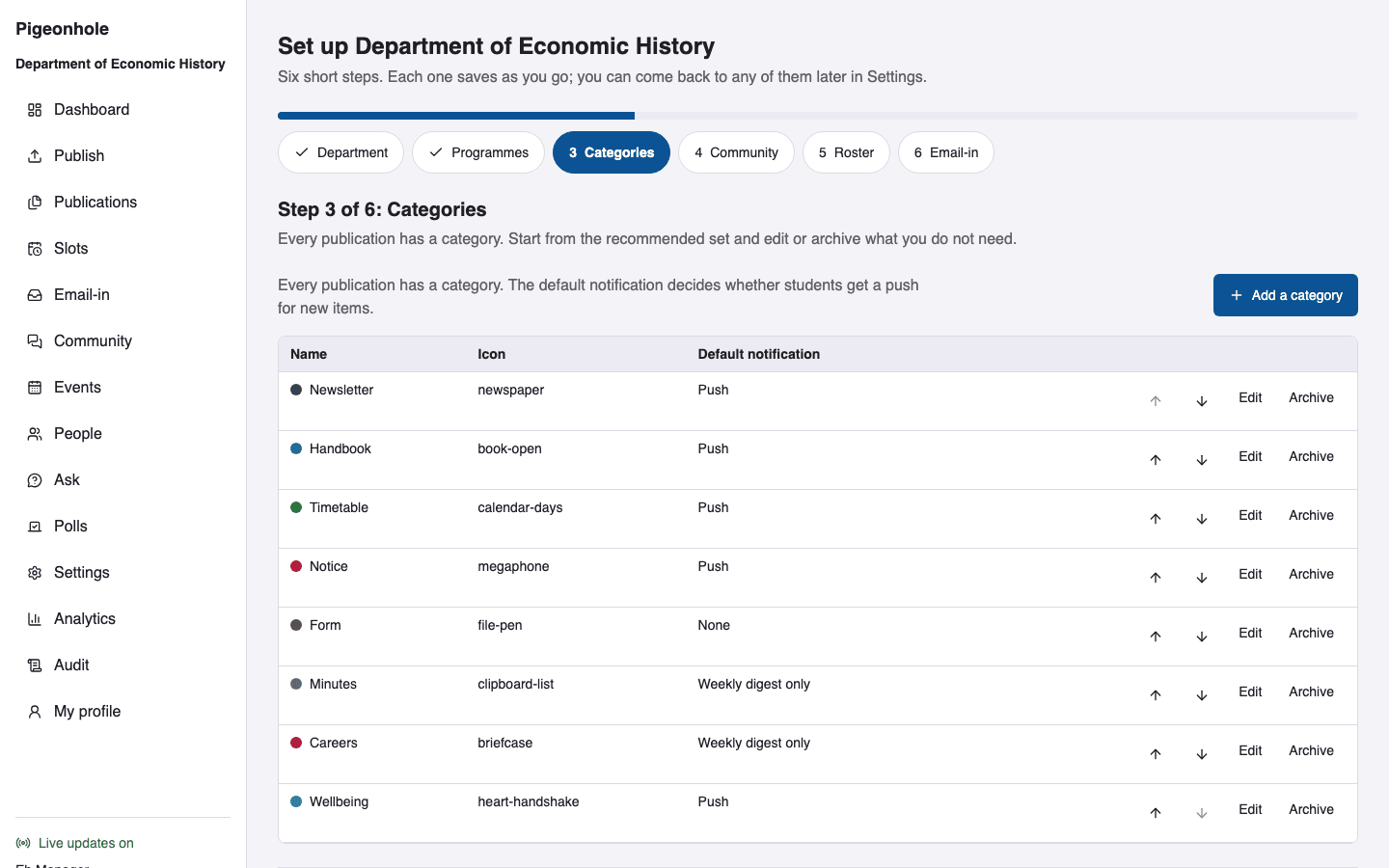
    Step 3 of 6: Categories, the recommended eight with icons and default notifications.
  6. Community

    Which community features are on, whom students may address, the automatic-hiding threshold and the guidelines (a template is provided).
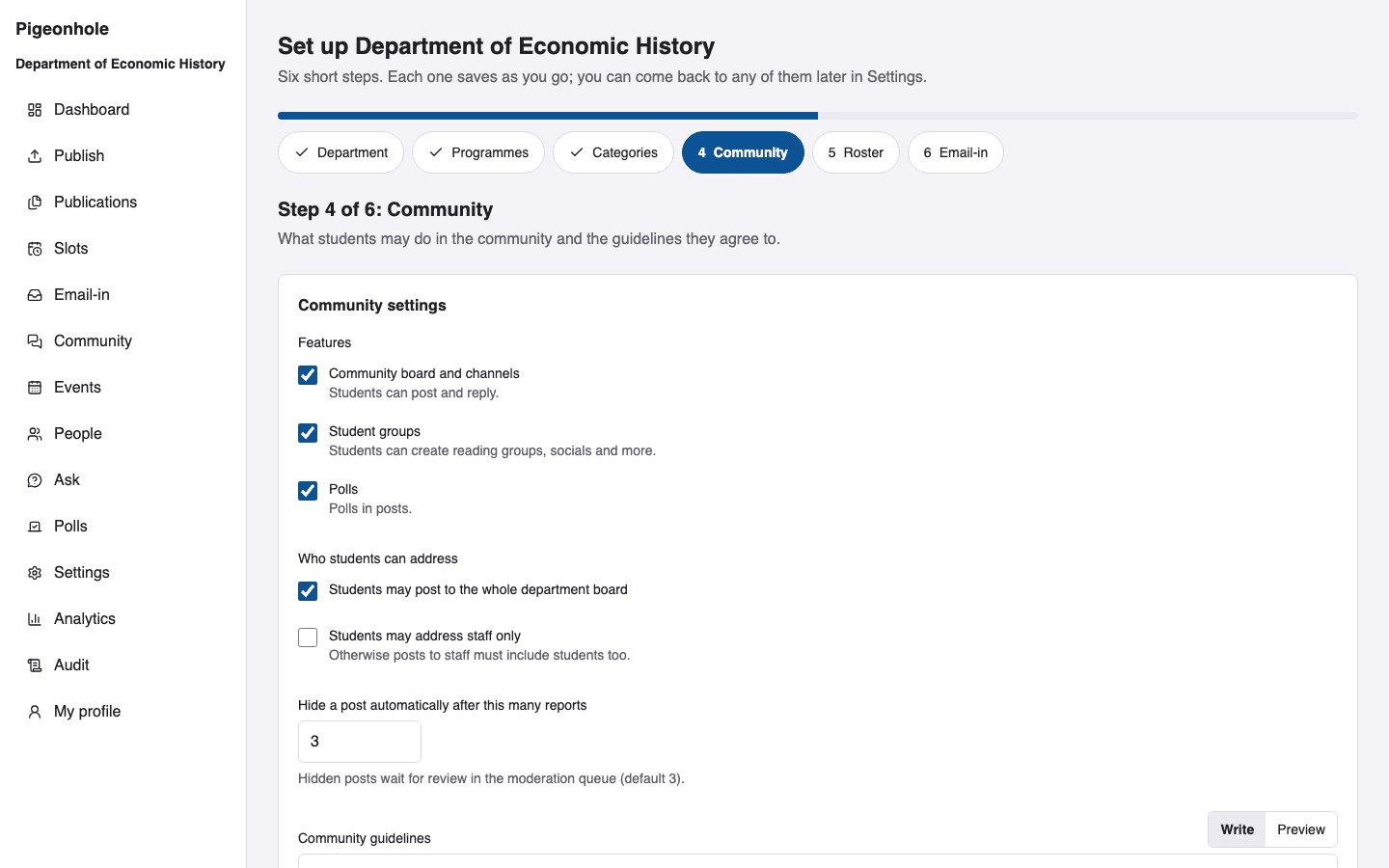
    Step 4 of 6: Community settings: board and channels, student groups and polls on; students may post to the whole department board; hide a post automatically after 3 reports; community guidelines.
  7. Roster

    Upload the first student list and review the difference before applying, exactly as in People.
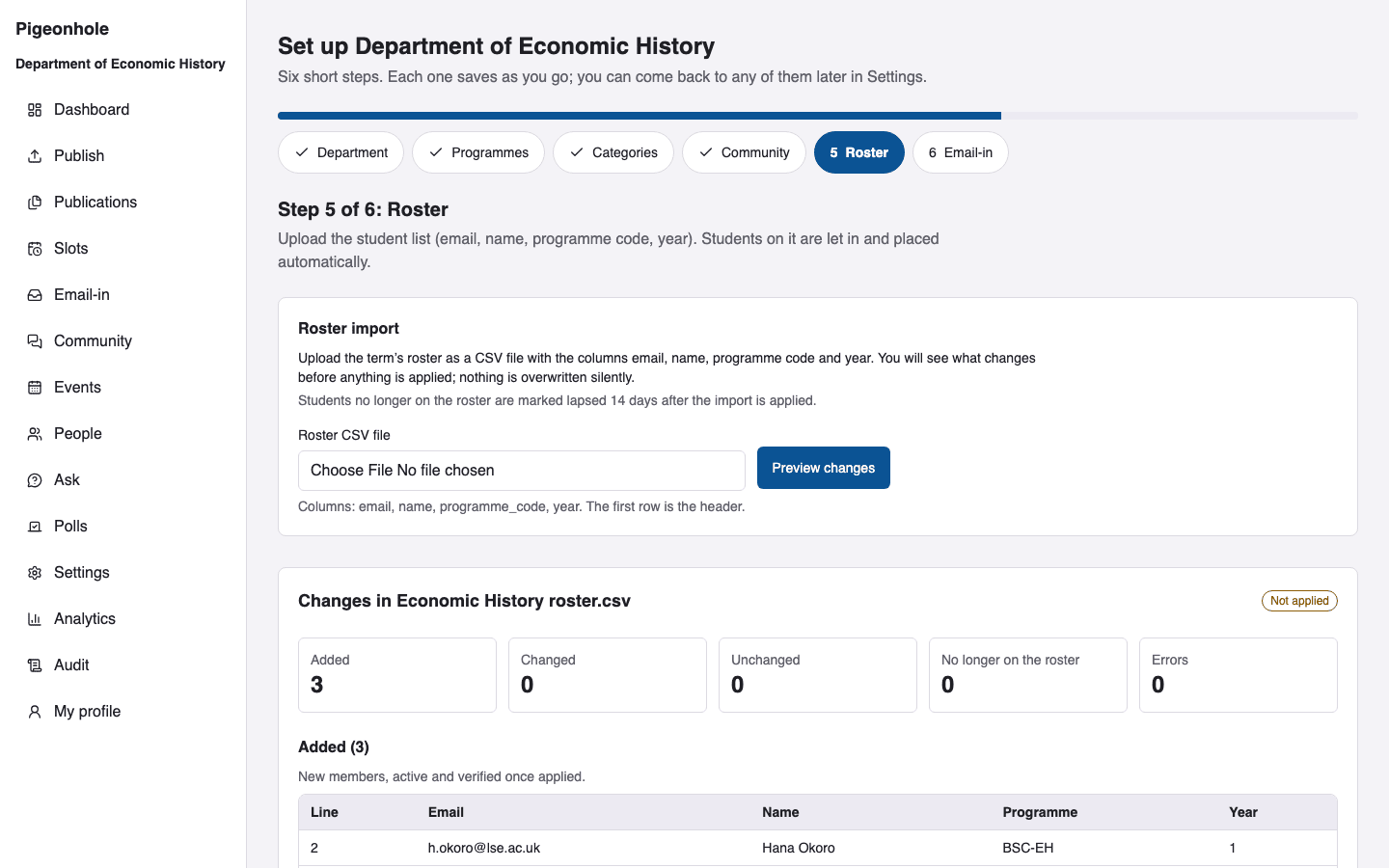
    Step 5 of 6: Roster: 'Changes in Economic History roster.csv', Added 3 (Hana Okoro, BSC-EH year 1, and two more), nothing changed, lapsed or in error.
  8. Email-in

    The department's inbound address, made at creation, and the allowed senders.
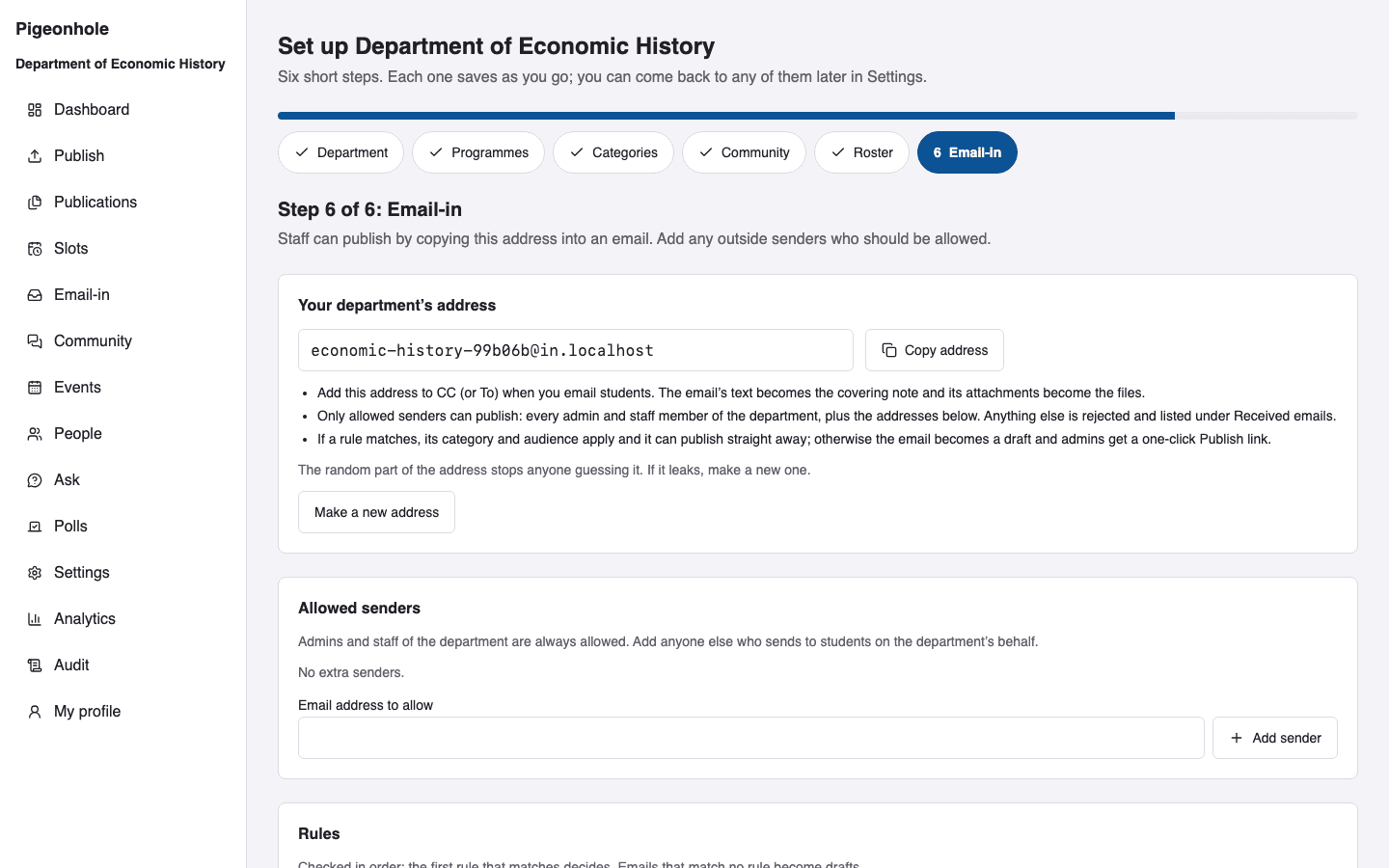
    Step 6 of 6: Email-in: the department's address economic-history-… with Copy address and the explanation of how email-in works; allowed senders; rules.
  9. Done

    "Department of Economic History is ready. Students on the roster will see the department in the app." Students already using the app are notified and find it in their switcher.
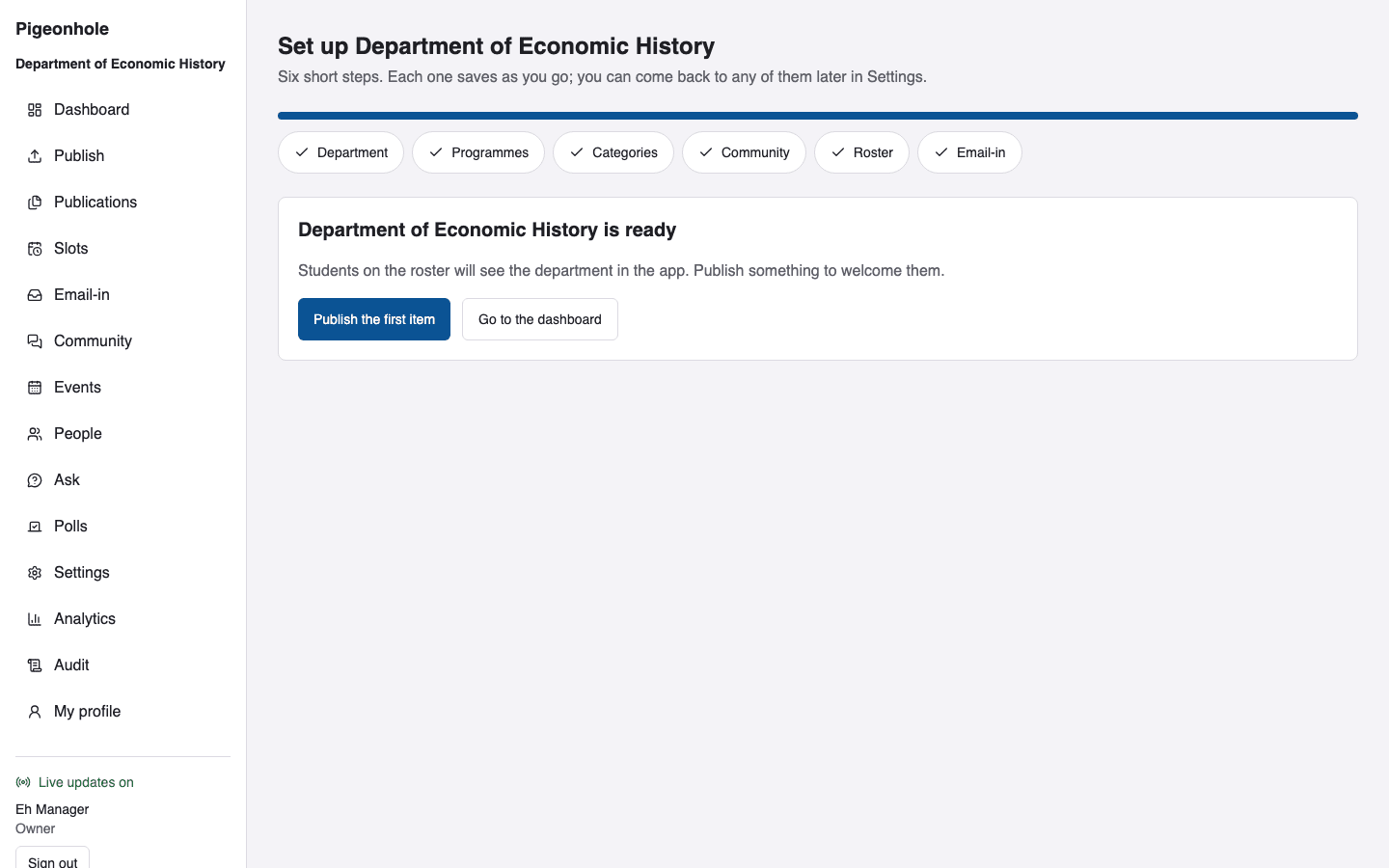
    The wizard's finish screen: 'Department of Economic History is ready', with Publish the first item and Go to the dashboard.

What academic staff can do

Academic staff have the staff role. Most of what they need is in the phone app, which they use as students do, with more permissions:

  • post to the whole department, to chosen programmes or years, or to staff only, with a Staff badge on their posts, and pin posts;
  • create department events and key dates with an audience, and see the names of who is going;
  • keep their own entry in People current: title, "ask me about" topics, office hours, room and whether their email is shown;
  • answer questions assigned to them.

In the portal they see a reduced menu (Dashboard, Publish, Publications, Events and My profile) and only their own drafts, publications and events. Their dashboard lists their drafts and scheduled items, and the publishing slots due this week. Staff are subject to the same reporting and moderation as students.
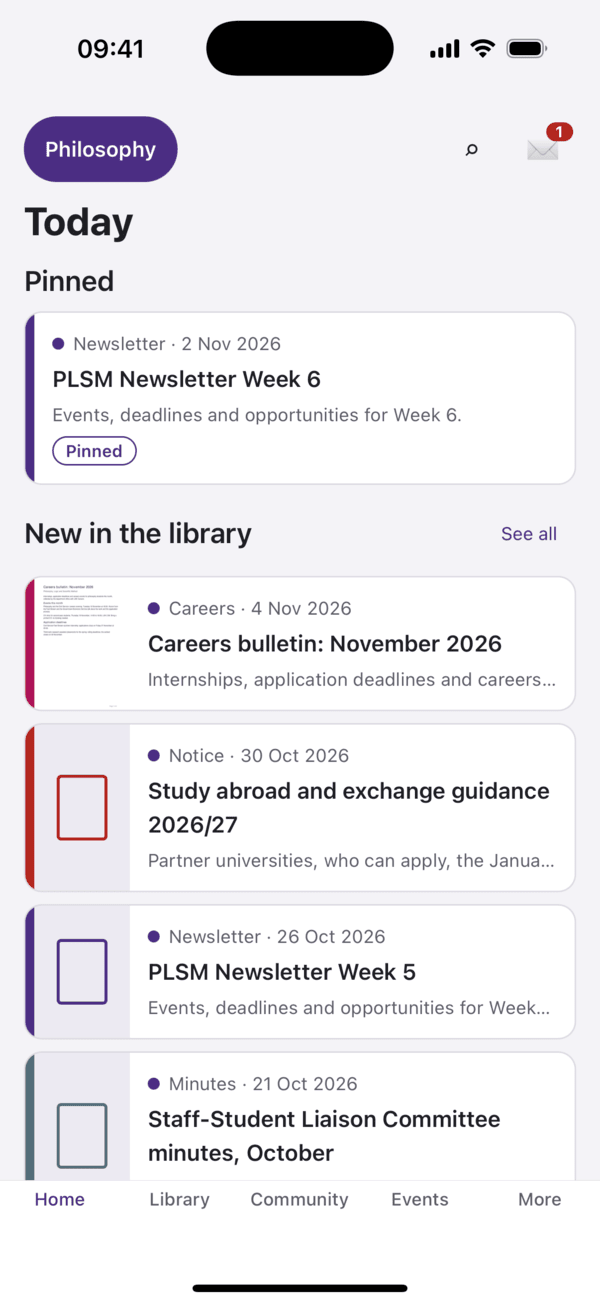
The app signed in as Dr Adaeze Okafor: Home in Philosophy with the pinned PLSM Newsletter Week 6 and, under New in the library, the Careers bulletin with a preview of its first page.
Dr Okafor's Home. The same app; the careers bulletin shows a preview of its first page.
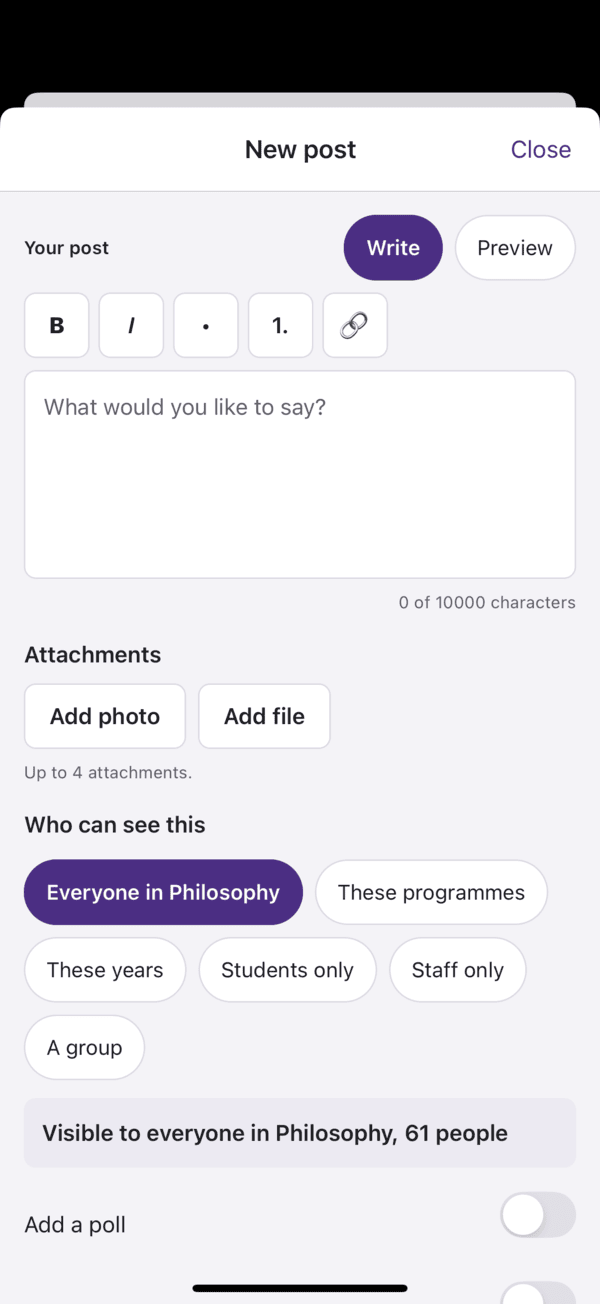
New post composer as staff: Who can see this offers Everyone in Philosophy (selected), These programmes, These years, Students only, Staff only and A group; 'Visible to everyone in Philosophy, 61 people'; Add a poll.
Posting as staff. The audience starts at the whole department, and Staff only is available.
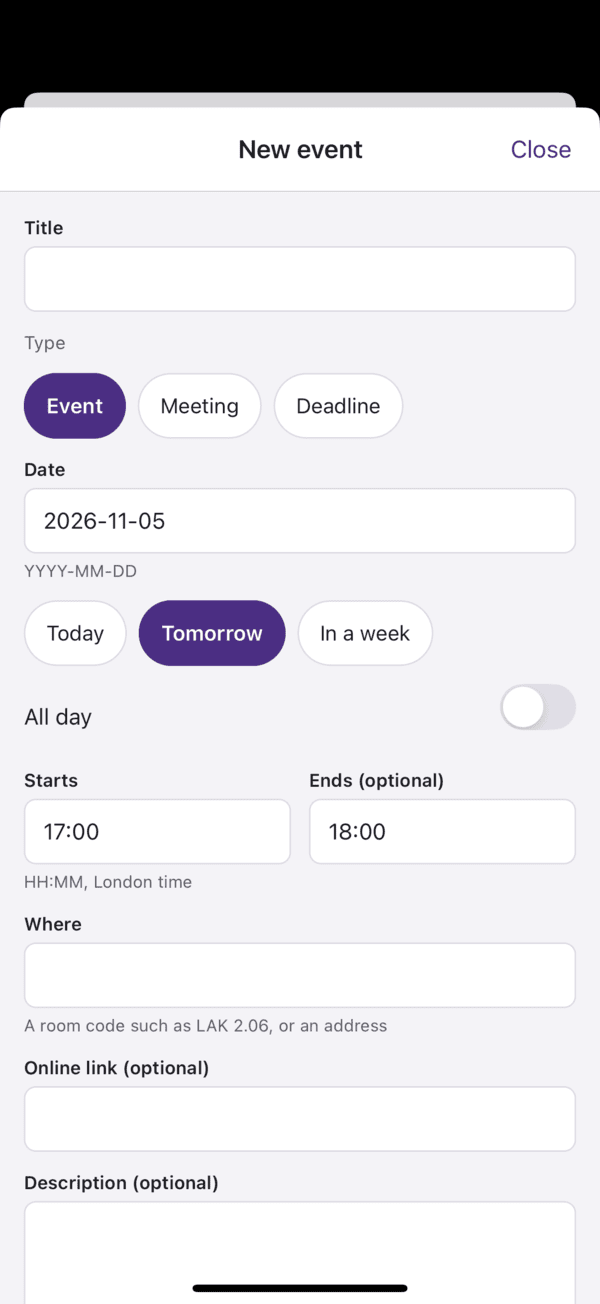
New event form as staff: title; type Event, Meeting or Deadline; date with Today, Tomorrow and In a week; all day; starts 17:00 and ends 18:00 London time; where; online link; description.
A department event, or a deadline, created from the phone.

App screenshots as Dr Okafor are in the light theme only.

Portal signed in as Dr Adaeze Okafor, Staff: menu with Dashboard, Publish, Publications, Events and My profile only; dashboard cards 'Your drafts and scheduled publications' (none) with Publish something, and 'Publishing slots due in the next 7 days': Weekly newsletter, 9 Nov 2026, Scheduled.
Dr Okafor's portal. Five sections, her own items only.