The app has five tabs: Home, Library, Community, Events and More. A department chip at the top left of every tab shows which department you are looking at. Every screen works in light and dark mode, follows the phone's text size, and is labelled for VoiceOver and TalkBack. The screenshots appear in the theme your own device uses; the few screens that can only be reached with a tap (the switcher, filters, menus, tabs inside a screen) are shown in the light theme only.
Signing in
There are no passwords. You type your university email address and the app emails you a 6-digit code, which you type into the app. Codes last 15 minutes and work once. You stay signed in on that phone for 90 days of use.
At LSE the email contains the code and nothing else. Microsoft 365's Safe Links scanning held every email containing a link for one to two minutes before delivering it; without a link the email arrives in about three seconds. A university whose mail is not delayed can have a Sign in button in the email as well, which opens the app and signs you in with one tap.


A student who is not on any roster yet (a late joiner, say) chooses a department, programme and year instead. Their membership is pending: they can read everything addressed to the whole department, but cannot post, react or RSVP until a member of staff approves them in the portal, or a later roster import lists them, which approves them automatically. A banner on every screen says so.
Departments and the switcher
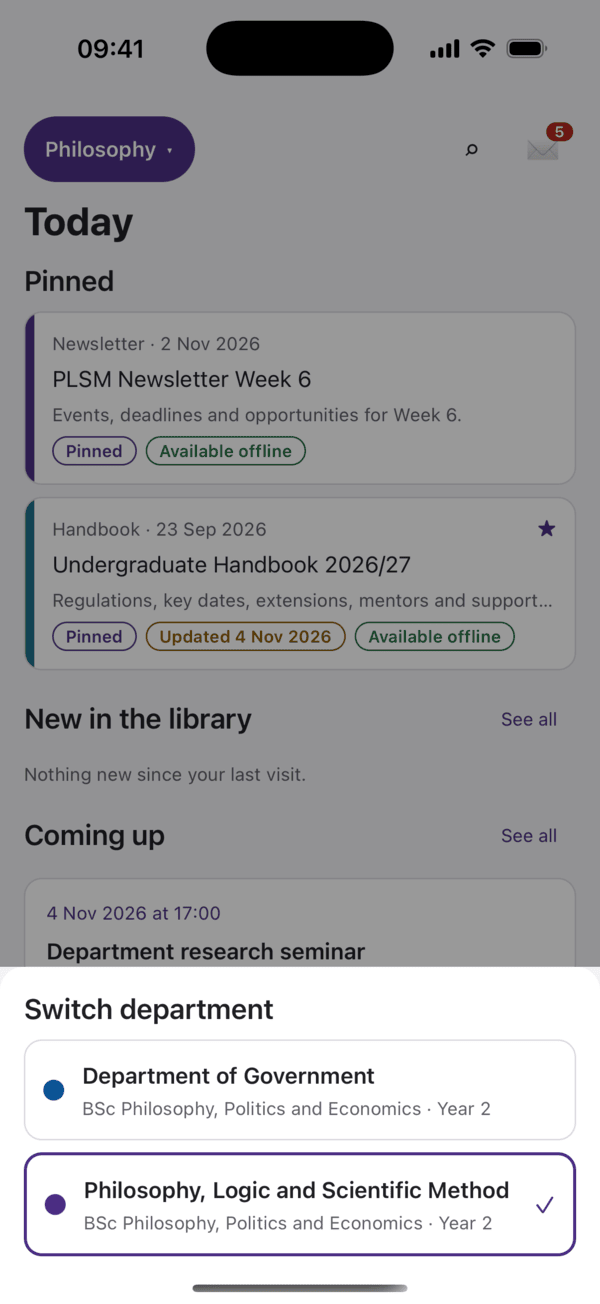
Joint degrees are common, so one app holds every department a student belongs to. Tapping the department chip opens the switcher; choosing a department changes the library, feed, events, people and branding together. Students with one department never see the switcher.

Home
Home is "what has changed since I last looked", in this order:
- Pinned notices the department wants everyone to see (they unpin themselves when they expire);
- New in the library since your last visit;
- Coming up: the next three events you are in the audience for, with your RSVP;
- Activity: replies and mentions in threads you are in, and new posts in your groups;
- answers to questions you asked the department.
The magnifying glass searches everything; the envelope opens the inbox and shows how many notifications are unread (five, for Sam). Pull down to refresh, although new publications and notifications arrive by themselves while the app is open. Everything is kept on the phone, so Home opens instantly, and without a connection it shows what it last saw.

Library and the reader
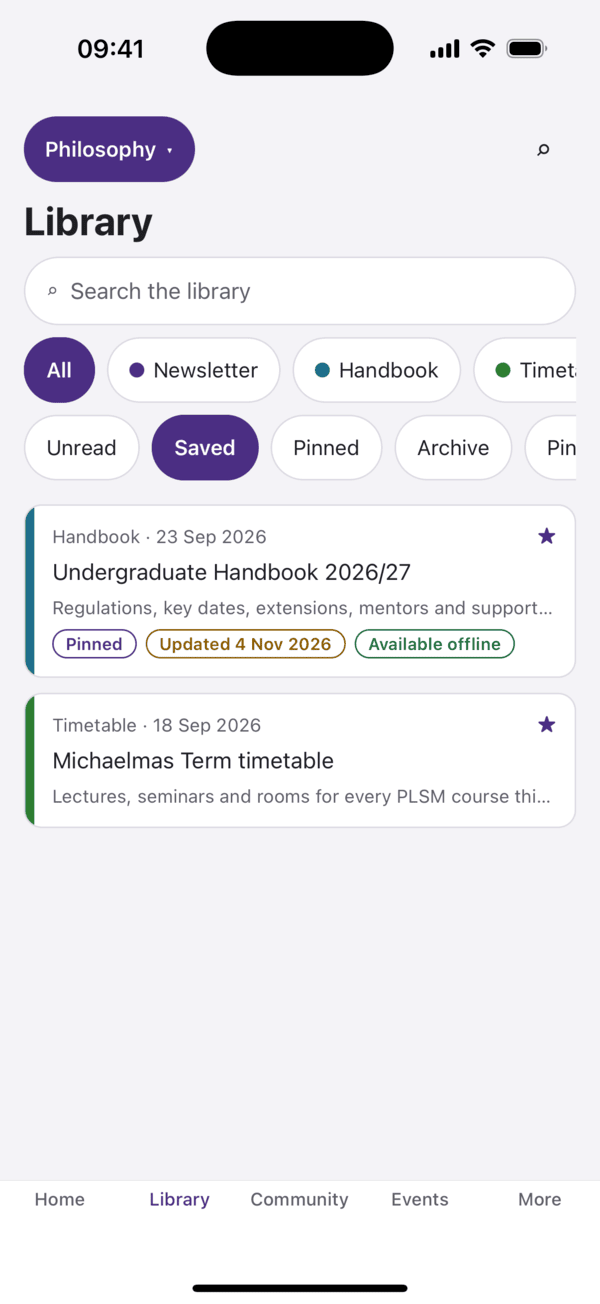
The library holds every publication you are in the audience for: newsletters, handbooks, timetables, notices, forms, minutes, careers and wellbeing information (each department chooses its own categories and colours). Filter by category, or by Unread, Saved, Pinned and Archive; expired items leave the list but stay findable under Archive. The search box searches the text inside the documents, not only their titles.



The reader opens over whatever you were doing, with Close at the top right. Close sits in a filled pill in the text colour, because iOS 26 draws header buttons on translucent glass, where a coloured word could not be read. Full screen shows the document, or its text, edge to edge with one button to leave, and the reader is still there underneath when you come back. The Text view shows the words extracted from the document reflowed into paragraphs: the lines of a paragraph are joined, words hyphenated across a line break are put back together, and headings, blank lines and list items (including Word's "o" sub-bullets) keep their breaks. It follows the phone's text size and screen reader.


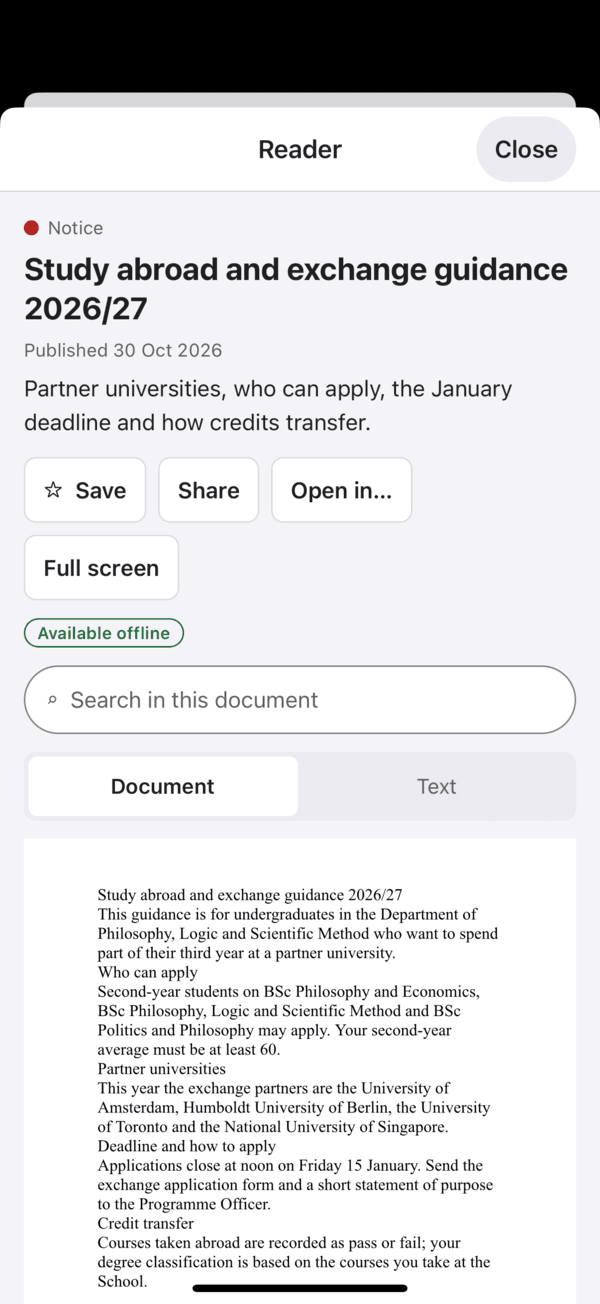

Saved and offline. Every document you open is kept on the phone, up to a limit you choose in Settings (200 MB unless you change it; saved items never count against it and are never removed automatically). Reading a document records that you have read it, which clears its "unread" state; the department only ever sees totals, never who has read what. Word files are searchable and shown as text; PowerPoint and Excel files can be opened in another app.
Community
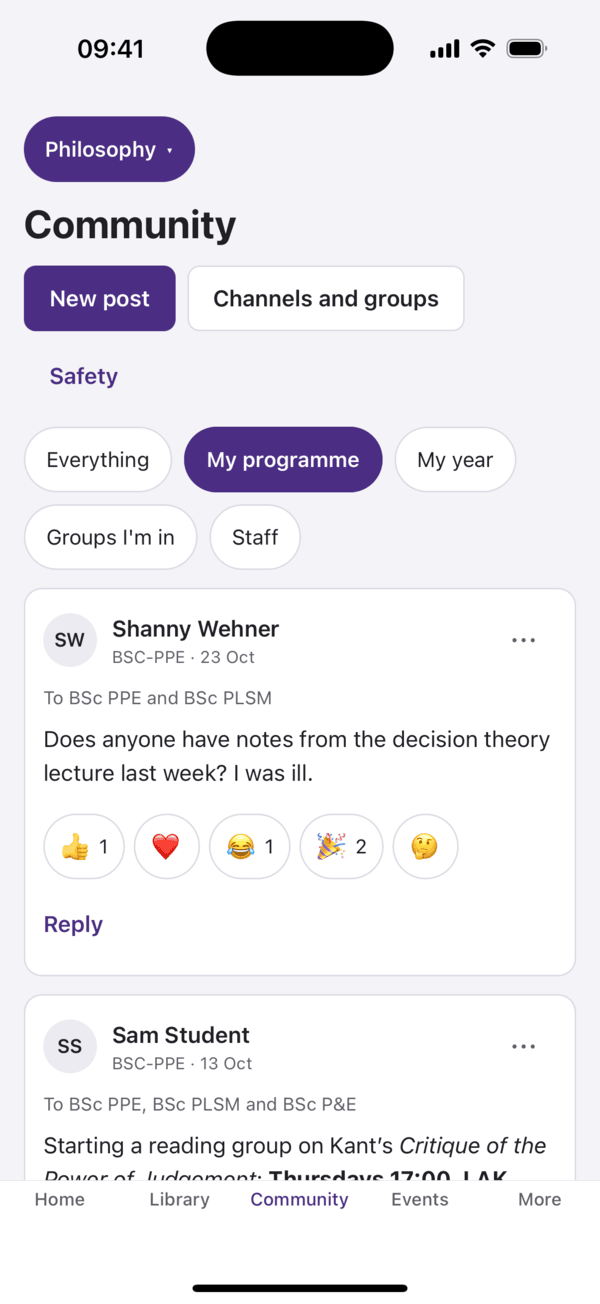
The feed is the department board. You see a post when its audience includes you: the whole department, your programme, your year, students only, or a group you are in. The filter bar narrows it to Everything, My programme, My year, Groups I'm in or Staff. Posts carry their author's real name and programme; staff posts carry a Staff badge. There are no private messages.



The composer. Light formatting (bold, italics, lists, links) with a preview; up to four photos or files of up to 50 MB each; a summary of who will see the post and how many people that is ("Visible to BSc PPE and BSc P&E, 212 people"); and, optionally, a poll or, in a group, a meeting. The community guidelines are shown before your first post. A post written without a connection waits on the phone and is sent when the connection returns. You can edit a post for 24 hours (it then shows "edited") and delete it at any time.

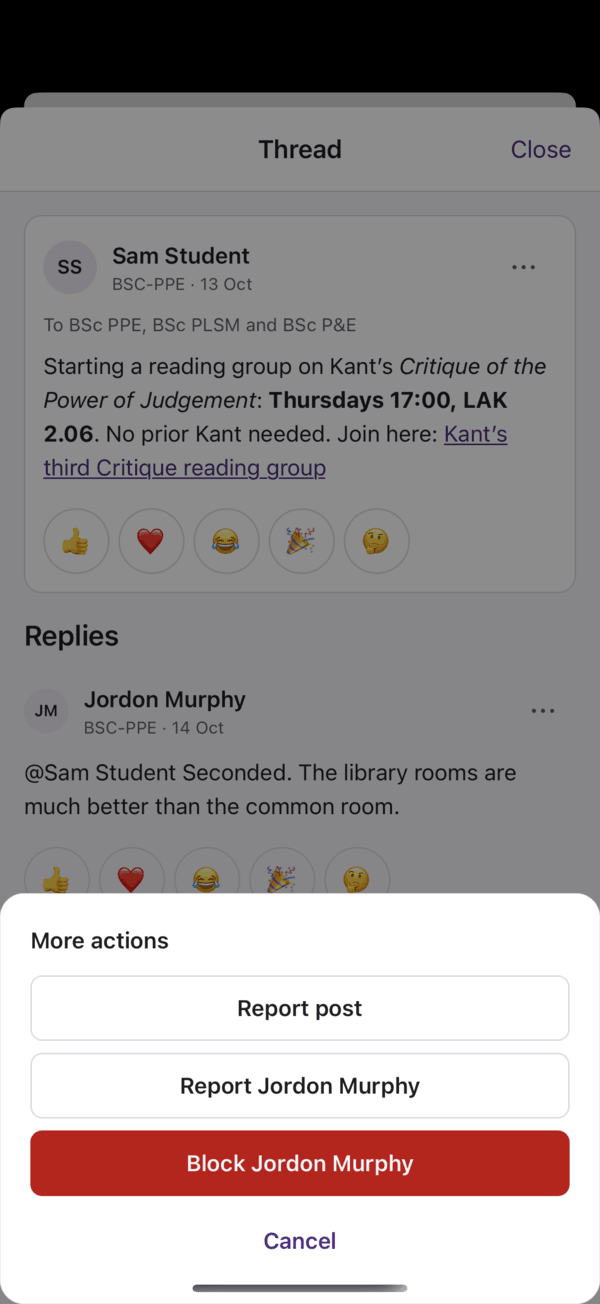
Channels and groups
Channels are made automatically: the department board, one per programme and one per year, with "Yours" on the ones you belong to. They are views of the same posts rather than separate rooms, so a post to BSc PPE and BSc PLSM appears in both channels. Groups are made in the app by any active member of the department, from a template (reading group, social, study group, society); whoever makes a group becomes its owner, shown as Organiser. Each group has its own posts, events, members and files, and is Open (anyone in the department joins), Request (the owner or one of the group's moderators approves each request) or Hidden (not listed; the owner invites people). The department's admins can read every group, hidden ones included. There are no private messages by design, so even a hidden group of two can be read by the department's admins.


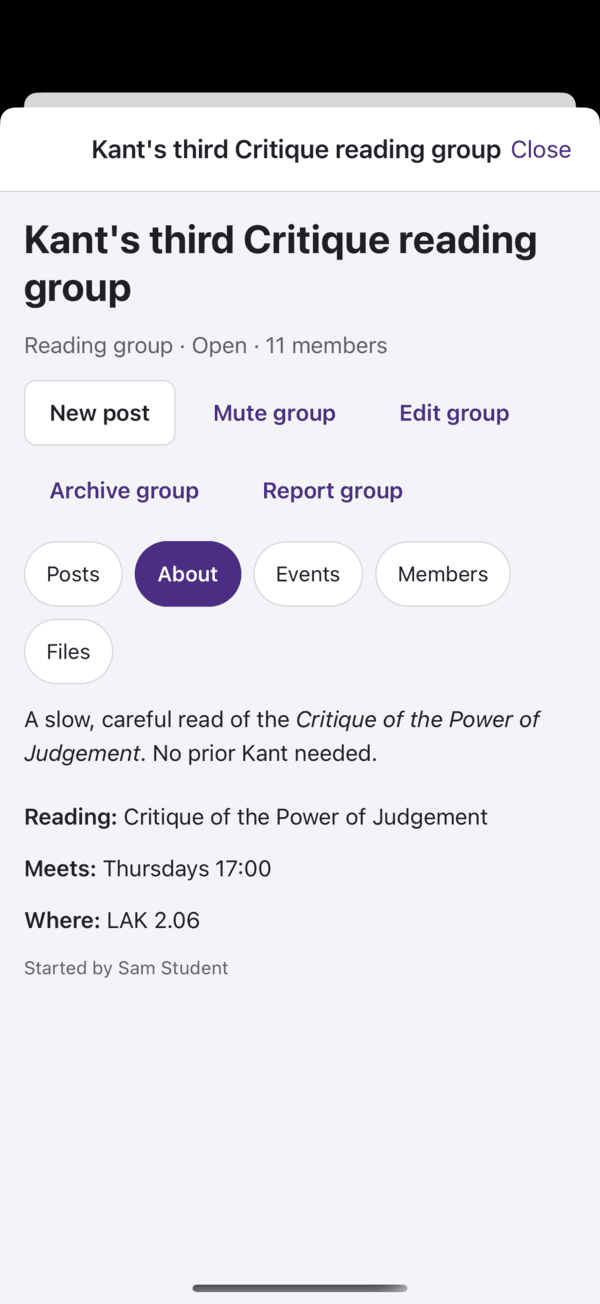
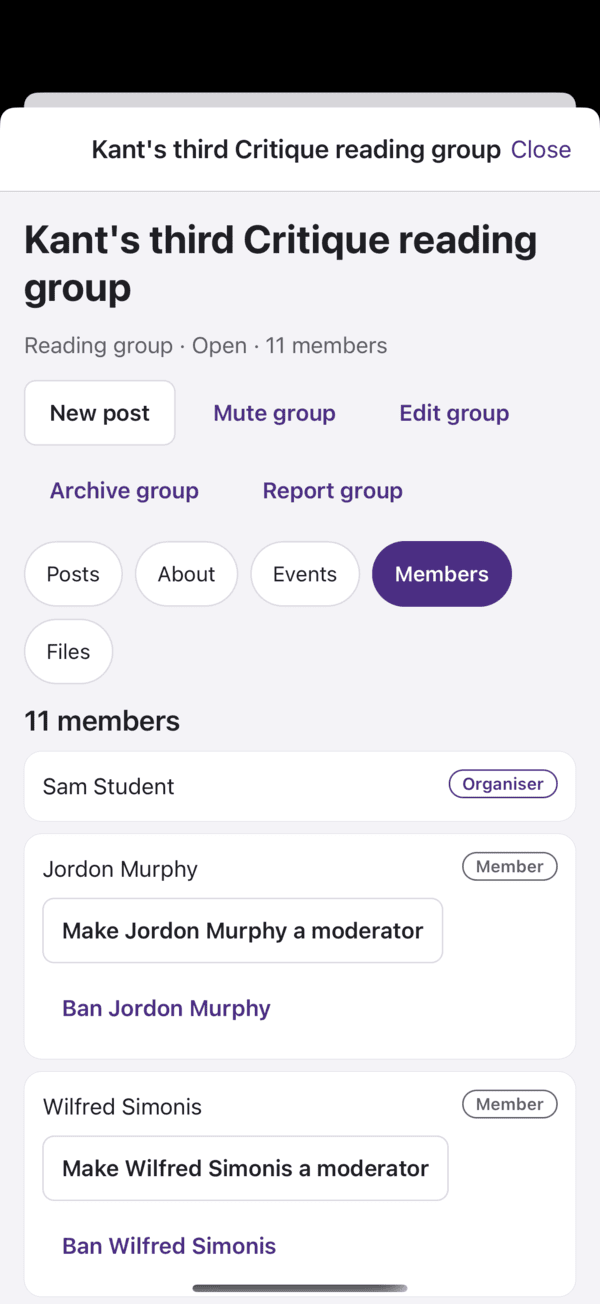
Safety: report, block, mute
Any post, person, group or event can be reported. Reports are private: the person reported is not told who reported them. Reports go to the department's moderators, who are expected to act within 24 hours; a post reported by three different people is hidden at once until a moderator looks at it, and you are told the outcome in general terms. Blocking someone hides their posts from you and yours from them, and nobody is told. Muting a group or thread keeps it out of your feed and stops its notifications. The Safety page lists everything you have blocked or muted, with Undo.


Events
Events are grouped by day in the department's time zone, under three tabs: Upcoming, Key dates (deadlines and administrative dates, marked with a coloured edge) and My events (what you have said you are going to or are interested in, and your groups' meetings).

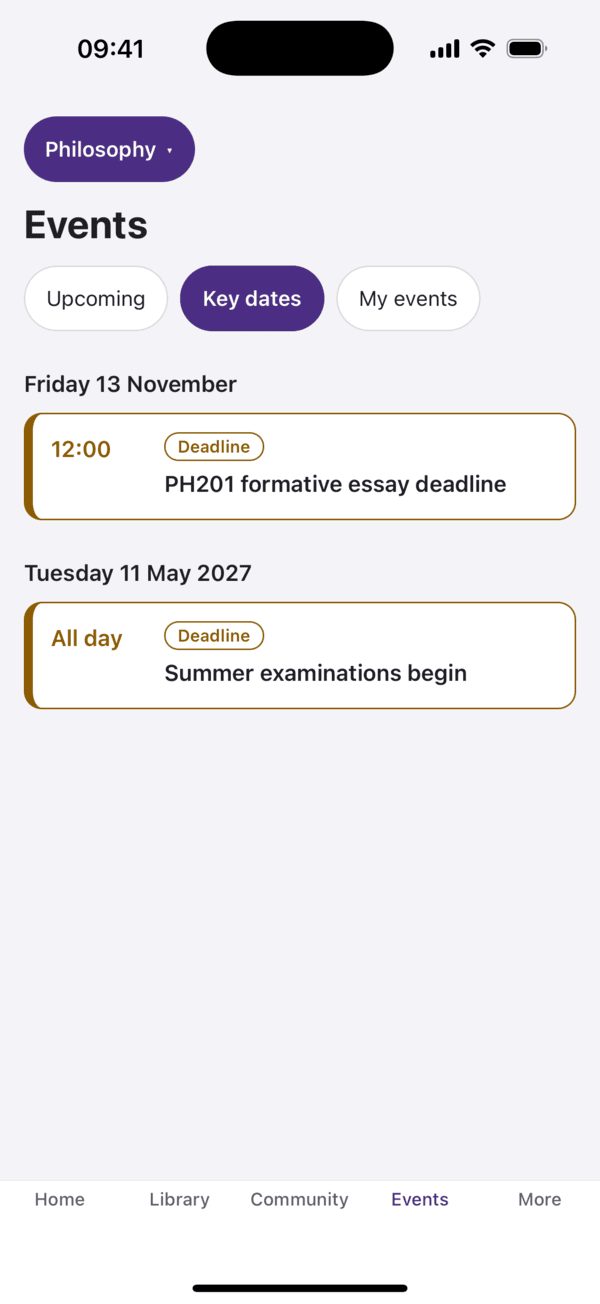
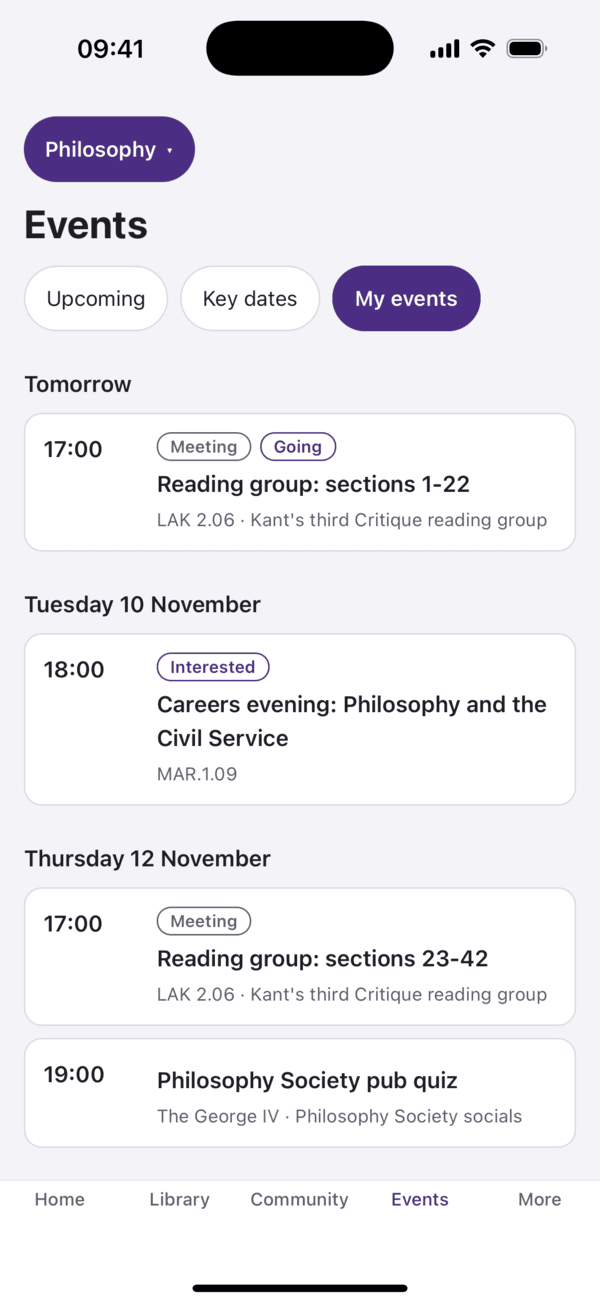


Students can also subscribe to a personal calendar feed, which every calendar app understands, covering all their departments. Recurring events (the weekly research seminar) keep their local time across the clock change.
Maths, video and audio
A department of logic and philosophy of science writes formulas. Event titles and every formatted text in the app (posts and replies, publications' notes, event descriptions, answers and FAQs) can contain TeX: $…$ or \(…\) inside a line, $$…$$ or \[…\] on a line of its own. The app draws each formula as an image on the line of text, with the same rules as the portal, and "$5 and $10" stays plain text.
A line that holds nothing but a YouTube or Vimeo link, or a link to an audio or video file, becomes a player, with the link underneath. Nothing plays until you tap it. Emails and notifications show the link instead.


People
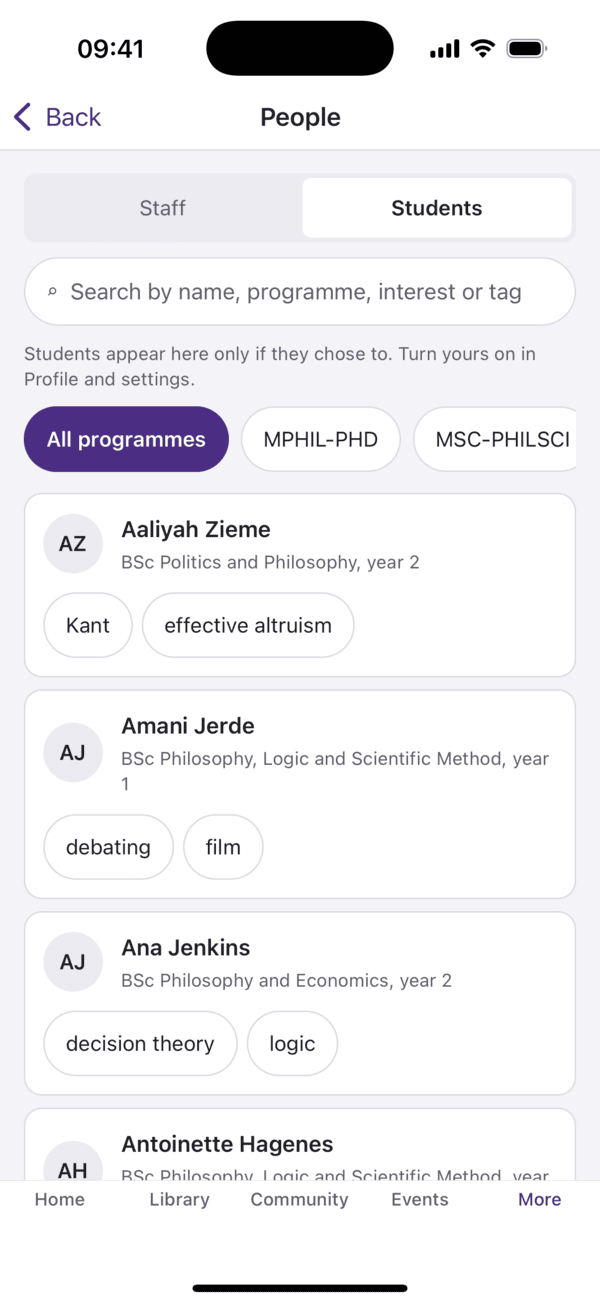
Under More → People: the staff directory, with each person's title, room, office hours and "ask me about" topics (tap a topic to find everyone who lists it), and the student directory. Students appear in the student directory only if they choose to, with programme, year and interests, so that someone looking for a reading-group partner can find one. Email addresses are shown only when the person makes theirs public.


Ask the department, and FAQs
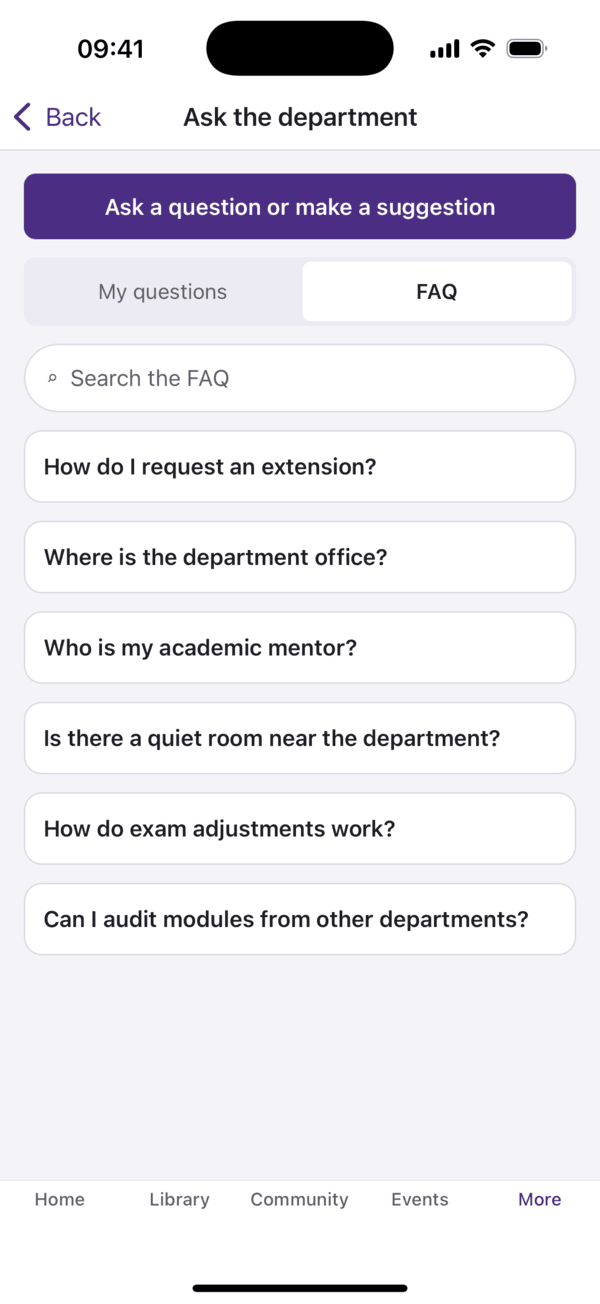
A question or a suggestion goes to the department office. Tick Ask anonymously and the department sees only that it came from a member of the department, not who; you can still read and reply to answers. (The owner of the department can reveal the author of an anonymous question in a serious safeguarding case; every such reveal is recorded in the audit log.) Replies arrive in your inbox, and an answer that would help others can be published as an FAQ.



Inbox and notifications
The inbox is the record of every notification, grouped by day, with unread ones marked; tapping one marks it read and opens what it is about. A badge on the More tab and on Home's envelope shows the unread count.
Push notifications are deliberately few. By default you are pushed about documents in the categories the department marks as important, pinned notices, replies and mentions, new posts in your groups, event reminders and answers to your questions. Posts to your programme or year, and new events, wait for the weekly digest on Monday morning. Between 22:00 and 08:00 nothing is pushed: what arrives is held and delivered as one summary in the morning. All of this can be changed per category in Settings.
While the app is open, a notification appears as a banner at the top of the screen instead of a push.

More and Settings
The More tab leads to People, Ask the department, the Inbox, Profile and settings, Departments, and About and privacy. Settings has five parts.


Export my data emails a link (valid for 24 hours) to a zip of everything Pigeonhole holds about you: profile, memberships, posts, reactions, votes, RSVPs, questions, notifications, settings and the files you uploaded. Delete my account asks for a code sent to your email, then removes your account at once: your posts stay, attributed to "Former member", and everything else personal is deleted. Sign out everywhere ends every session on every device.
On a computer
The same app runs in a web browser, for anyone who would rather read the handbook on a laptop. On a wide screen the library becomes two columns, the list and a reading pane, and the reader uses the full width; PDFs open in the browser's own viewer. On the web the sign-in is not remembered when the page is reloaded (tokens are kept only in memory there), which is a known limitation.

